
How to Create Table with Row and Column in Flutter
Restored from an archived FlutterDocs resource. Code examples and APIs may refer to earlier Flutter/Dart SDK versions.
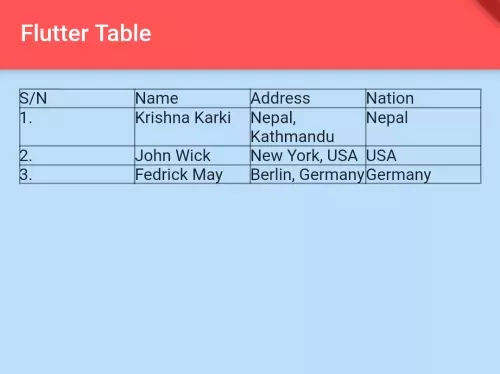
The table is very important component to show data in an organized way, which you may need while building an app. In Flutter, you can build a table using the Table() widget. See the example below to build a table in the Flutter app.
How to Add a Table in Flutter:
Table(
  border: TableBorder.all(width:1, color:Colors.black45), //table border
  children: [

        TableRow(
          children: [
            TableCell(child: Text("S/N")),
            TableCell(child: Text("Name")),
            TableCell(child: Text("Address")),
            TableCell(child: Text("Nation"))
          ]
        ),

        TableRow(
          children: [
            TableCell(child: Text("1.")),
            TableCell(child: Text("Krishna Karki")),
            TableCell(child: Text("Nepal, Kathmandu")),
            TableCell(child: Text("Nepal"))
          ]
        ),

        TableRow(
          children: [
            TableCell(child: Text("2.")),
            TableCell(child: Text("John Wick")),
            TableCell(child: Text("New York, USA")),
            TableCell(child: Text("USA"))
          ]
        ),

        TableRow(
          children: [
            TableCell(child: Text("3.")),
            TableCell(child: Text("Fedrick May")),
            TableCell(child: Text("Berlin, Germany")),
            TableCell(child: Text("Germany"))
          ]
        ),

  ],
)
Dart Code – Flutter App Example:
import 'package:flutter/material.dart';

void main() {
   runApp(MyApp());
}

class MyApp extends StatelessWidget{
  @override
  Widget build(BuildContext context) {
    return MaterialApp(
         theme: ThemeData(
          useMaterial3: false
         ),
         home: HomePage(),
    );
  }
}


class HomePage extends StatelessWidget{
  @override
  Widget build(BuildContext context) {
    return Scaffold(
        backgroundColor: Colors.blue[100], //background color of scaffold
        appBar: AppBar(
            title:Text("Flutter Table"), //title of app
            backgroundColor: Colors.redAccent, //background color of app bar
        ),
        body: Container(
            padding: EdgeInsets.all(15),
            child:Table(
            border: TableBorder.all(width:1, color:Colors.black45), //table border
            children: [

                 TableRow(
                   children: [
                      TableCell(child: Text("S/N")),
                      TableCell(child: Text("Name")),
                      TableCell(child: Text("Address")),
                      TableCell(child: Text("Nation"))
                   ]
                 ),

                 TableRow(
                   children: [
                      TableCell(child: Text("1.")),
                      TableCell(child: Text("Krishna Karki")),
                      TableCell(child: Text("Nepal, Kathmandu")),
                      TableCell(child: Text("Nepal"))
                   ]
                 ),

                 TableRow(
                   children: [
                      TableCell(child: Text("2.")),
                      TableCell(child: Text("John Wick")),
                      TableCell(child: Text("New York, USA")),
                      TableCell(child: Text("USA"))
                   ]
                 ),

                 TableRow(
                   children: [
                      TableCell(child: Text("3.")),
                      TableCell(child: Text("Fedrick May")),
                      TableCell(child: Text("Berlin, Germany")),
                      TableCell(child: Text("Germany"))
                   ]
                 ),

            ],)
        )
     );
  }
}
Output:
To Set cell padding:
TableCell(
      child: Padding(
      padding: EdgeInsets.all(10),
      child:Text("Fedrick May")
    )
 )
In this way, you can build the table in your Flutter app.