
How to set Label and Hint on TextField with Style in Flutter
Restored from an archived FlutterDocs resource. Code examples and APIs may refer to earlier Flutter/Dart SDK versions.
In this example, we are going to show you the way to set hint and label text on TextField widget in Flutter with style like text weight, color, font size. See the example below for more information:
Set Label and Hint Text on TextFiled Widget:
TextField(
  decoration: InputDecoration(
      labelText: "Username", //babel text
      hintText: "Enter your email", //hint text
      prefixIcon: Icon(Icons.people), //prefix iocn
      hintStyle: TextStyle(fontSize: 18, fontWeight: FontWeight.bold), //hint text style
      labelStyle: TextStyle(fontSize: 13, color: Colors.redAccent), //label style
  )
)
Full Code Example:
import 'package:flutter/material.dart';

void main(){
  runApp(MyApp());
}

class MyApp extends StatelessWidget{
  @override
  Widget build(BuildContext context) {
    return MaterialApp(
      theme: ThemeData(useMaterial3: false),
      home: Home(),
    );
  }
}

class Home extends StatefulWidget{
  @override
  _HomeState createState() => _HomeState();
}

class _HomeState extends State<Home> {

  TextEditingController username = TextEditingController();
  TextEditingController password = TextEditingController();
  @override
  void initState() {
    username.text = ""; //innitail value of text field
    password.text = "";
    super.initState();
  }

  @override
  Widget build(BuildContext context) {
    return  Scaffold(
          appBar: AppBar(
             title: Text("Hint and Label TextField"),
             backgroundColor: Colors.deepOrangeAccent,
          ),
          body: Container(
            padding: EdgeInsets.all(20),
            child: Column(
              children: [
                TextField(
                  controller: username,
                  decoration: InputDecoration(
                      labelText: "Username", //babel text
                      hintText: "Enter your email", //hint text
                      prefixIcon: Icon(Icons.people), //prefix iocn
                      hintStyle: TextStyle(fontSize: 18, fontWeight: FontWeight.bold), //hint text style
                      labelStyle: TextStyle(fontSize: 13, color: Colors.redAccent), //label style
                  )
                ),

                Container(height:20), //space between text field

                TextField(
                  controller: password,
                  decoration: InputDecoration(
                      prefixIcon: Icon(Icons.lock),
                      labelText: "Password",
                      hintText: "Enter your password",
                      hintStyle: TextStyle(fontSize: 18, fontWeight: FontWeight.w300),
                      labelStyle: TextStyle(fontSize: 13, color: Colors.deepPurpleAccent),
                  )
                ),

              ],
            ),
          )
       );
  }
}
Output Screenshot:
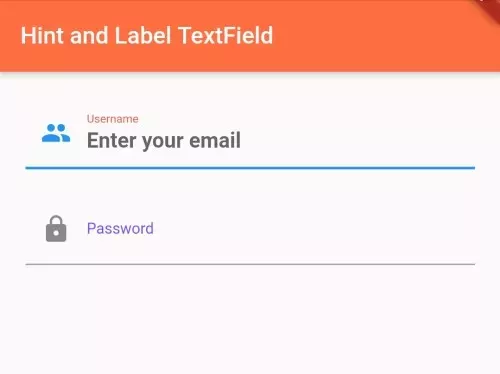
In this way, you can set label and hint text on TextFiled widget with style in Flutter apps.