
How to Auto Aspect Ratio on Container Size in Flutter
Restored from an archived snapshot captured 2021-11-23. Examples may refer to earlier Flutter versions.
In this example, we are going to set the size of the container with an auto aspect ratio. If we give any dimensional property height or width to the container, it will automatically resize another dimension according to the given aspect ratio.
How to Use Aspect Ratio Size on Container:
Container(
  width:200,
  color: Colors.lightGreen,
  child: AspectRatio(
        aspectRatio: 2/1,
        child: Container(
            child: Text("Aspect Ratio 2:1")
        )
  ),
)
Here, we have used AspectRatio inside the Container to resize its parent container.
Full Code Example:
import 'package:flutter/material.dart';

void main() {
  runApp(
    MaterialApp(
      home: MyApp()
    )
  );
}

class MyApp extends StatefulWidget{
  @override
  State<MyApp> createState() => _MyAppState();
}

class _MyAppState extends State<MyApp> {

  @override
  Widget build(BuildContext context) {
    return Scaffold(
          appBar: AppBar(
              title:Text("Auto Aspect Ratio Size"), //appbar title
              backgroundColor: Colors.redAccent //appbar background color
          ),
          body: Container(
            alignment:Alignment.topCenter,
            padding: EdgeInsets.all(15),
             child: Column(
                children:[

                      Container(
                        width:200,
                        color: Colors.lightGreen,
                        child: AspectRatio(
                             aspectRatio: 2/1,
                             child: Container(
                                  child: Text("Aspect Ratio 2:1")
                             )
                        ),
                      ),

                      Divider(),

                      Container(
                        height:130,
                        color: Colors.lightBlue,
                        child: AspectRatio(
                             aspectRatio: 16/9,
                             child: Container(
                                 child: Text("Aspect Ratio 16:9"),
                             )
                        ),
                      )
                ]
             )
          )
      );
  }
}
Output Screenshot:
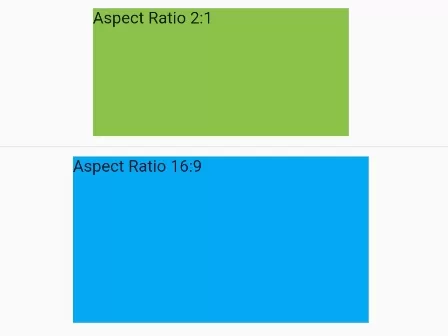
In this way, you can apply the auto aspect ratio to any widget such as Container(), Card() in Flutter.