
How to use Conditional Statement (IF ELSE) on Child Widget in Flutter
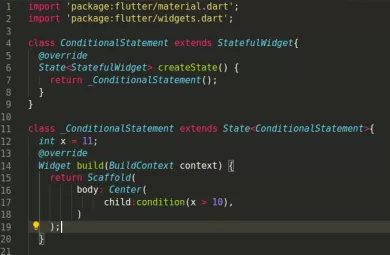
During building an app, sometimes we need to show content according to condition using if..else statement. But in Flutter, we can\u2019t place if\u2026else statement directly on child attribute because it accepts only widgets. But you can apply conditions child attribute like shown in the example below.
Method 1: Using Conditional Operators (? 🙂 called Ternary Operator:
bool loading = true;Container(
child: loading? //check if loading is true or false
CircularProgressIndicator(): //show progress on loading = true
Text("Loaded"), //show this text on loading = false
)Using Multiple Conditions:
bool loading = false;
bool error = true;
Container(
child: loading? //first check if loading is true or false
CircularProgressIndicator(): //show progress on loading = true
error?Text("Error"): //when loading = false, and then check error is true or false
Text("Loaded and No Error"), //if loading = false and error = false, then show this text
)Another Example:
int y = 5;Container(
child: y >= 10?
Text("Y is greater than or equal to 10"):
Text("Y is less than 10")
)Method 2: Apply IF….ELSE like below on Children property:
int a = 10;Column(
children: [
if(a > 10)...[
Text("A is greater than 10"),
]else...[
Text("A is less than or Equal to 10")
]
])You can apply this method of conditional statement on widget tree which has “children” property, for example, Column(), Row(), Wrap() widgets.
Method 3: Apply Conditions (IF… ELSE) on LayoutBuilder:
int y = 5;Container(
child:LayoutBuilder(builder: (context, constraints) {
if(y >= 10){
return Text("Y is greater than or equal to 10");
}else{
return Text("Y is less than 10");
}
})
)Method 4: Using another Method/Function:
class _MyAppState extends State<MyApp> {
  int y = 5;

  @override
  Widget build(BuildContext context) {
    return Scaffold(
          body: showwidget()
      );
  }

  showwidget(){
     if(y >= 10){
        return Text("Y is greater than or equal to 10");
     }else{
        return Text("Y is less than 10");
     }
  }
}
In this way, you can use conditional statements, comparisons in child property, or on any widget in Flutter. For more conditional and programmatic widget generation techniques, explore for loops on widgets and enabling and disabling buttons dynamically.
Updated Flutter Example
Dart 3 Pattern Matching & Modern Collection If/Else in Widget Trees
Key Implementation Details & Modern Differences:
- Collection If/Else: Modern Dart allows embedding
if (...) ... else ...directly inside widget children lists without awkward ternary operators or helper methods. - Dart 3 Switch Expressions: Complex state branching can be expressed cleanly inside a single widget builder using pattern matching.
- SizedBox.shrink(): To render nothing when a condition is false, use
const SizedBox.shrink()instead of allocating an emptyContainer().
import 'package:flutter/material.dart';

enum AuthState { loading, authenticated, unauthenticated }

void main() {
  runApp(const MaterialApp(home: ModernConditionalUIDemo()));
}

class ModernConditionalUIDemo extends StatefulWidget {
  const ModernConditionalUIDemo({super.key});

  @override
  State<ModernConditionalUIDemo> createState() =>
      _ModernConditionalUIDemoState();
}

class _ModernConditionalUIDemoState extends State<ModernConditionalUIDemo> {
  final AuthState _state = AuthState.authenticated;
  bool _showDetails = true;

  @override
  Widget build(BuildContext context) {
    return Scaffold(
      appBar: AppBar(title: const Text('Modern Conditional UI')),
      body: Padding(
        padding: const EdgeInsets.all(24.0),
        child: Column(
          crossAxisAlignment: CrossAxisAlignment.stretch,
          children: [
            // 1. Dart 3 Switch Expression for multi-branch state
            switch (_state) {
              AuthState.loading => const Center(
                child: CircularProgressIndicator(),
              ),
              AuthState.authenticated => const Card(
                child: Padding(
                  padding: EdgeInsets.all(16),
                  child: Text('Welcome, Verified User!'),
                ),
              ),
              AuthState.unauthenticated => const Card(
                child: Padding(
                  padding: EdgeInsets.all(16),
                  child: Text('Please log in to continue.'),
                ),
              ),
            },
            const SizedBox(height: 16),
            // 2. Collection If/Else element
            if (_showDetails) ...[
              const Text(
                'Account Details: Active Subscription',
                style: TextStyle(fontWeight: FontWeight.w600),
              ),
              const SizedBox(height: 8),
              const Text('Expires: December 2026'),
            ] else
              const SizedBox.shrink(), // Zero-cost empty widget
            const Spacer(),
            ElevatedButton(
              onPressed: () => setState(() => _showDetails = !_showDetails),
              child: Text(_showDetails ? 'Hide Details' : 'Show Details'),
            ),
          ],
        ),
      ),
    );
  }
}Document History & Archival Record
Original reference snapshot archived February 2, 2023. Updated working solution verified on modern Flutter & Dart SDKs.