
How to Make TextField Read Only in Flutter
Verified Solution
Tested on Flutter 3.47.7 • Dart 3.13.5
Jump to Updated Flutter Example ↓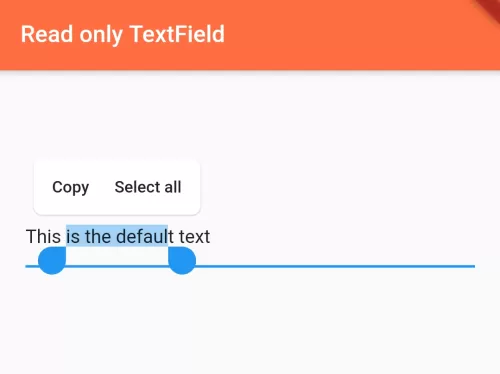
In this example, we are going to show you the way to make TextField() widget read only. Sometime you may need to show your text in TextField with read only attribute. See the example below to make text field read-only on Flutter app.
To make TextField() read only:
TextField(
  readOnly: true, //boolean, true or false
)
Use readOnly property of TextField() to make TextField read only or not.
Full Code Example:
import 'package:flutter/material.dart';

void main(){
  runApp(MyApp());
}

class MyApp extends StatelessWidget{
  @override
  Widget build(BuildContext context) {
    return MaterialApp(
      home: Home(),
    );
  }
}

class Home extends StatefulWidget{
  @override
  _HomeState createState() => _HomeState();
}

class _HomeState extends State<Home> {

  TextEditingController myinput = TextEditingController();
  @override
  void initState() {
    myinput.text = "This is the default text";
    super.initState();
  }

  @override
  Widget build(BuildContext context) {
    return  Scaffold(
          appBar: AppBar(
             title: Text("Read only TextField"),
             backgroundColor: Colors.deepOrangeAccent,
          ),
          body: Container(
            padding: EdgeInsets.all(20),
            child: Center(
              child: TextField(
                controller: myinput,
                readOnly: true,
              ),
            ),
          )
       );
  }
}
Output Screenshot:

In this way, you can make TextField() widget read only. Read-only textfields are commonly paired with date selectors; see how to handle showing date pickers on TextField tap and setting labels and hints on TextFields.
Updated Flutter Example
Updated Flutter Example
TextField Read-Only and Disabled States
Key Implementation Details & Modern Differences:
- Read-Only vs Disabled Semantics: Clarifies difference between
readOnly: true(selectable, copiable, supports tap gestures) andenabled: false(dimmed, non-interactive). - Modal Picker Trigger Pattern: Employs
readOnly: truewith anonTapcallback to launch custom picker dialogs cleanly. - Material 3 InputDecoration: Uses suffix icons and filled input decorations with proper theme tokens.
Updated Flutter Example Code
import 'package:flutter/material.dart';

void main() {
  runApp(const MaterialApp(home: ModernReadOnlyTextFieldDemo()));
}

class ModernReadOnlyTextFieldDemo extends StatefulWidget {
  const ModernReadOnlyTextFieldDemo({super.key});

  @override
  State<ModernReadOnlyTextFieldDemo> createState() =>
      _ModernReadOnlyTextFieldDemoState();
}

class _ModernReadOnlyTextFieldDemoState
    extends State<ModernReadOnlyTextFieldDemo> {
  final TextEditingController _readOnlyController = TextEditingController(
    text: 'Read-only content (selectable & copiable)',
  );
  final TextEditingController _disabledController = TextEditingController(
    text: 'Disabled field (completely non-interactive)',
  );

  int _pickerTapCount = 0;

  @override
  void dispose() {
    _readOnlyController.dispose();
    _disabledController.dispose();
    super.dispose();
  }

  @override
  Widget build(BuildContext context) {
    final theme = Theme.of(context);

    return Scaffold(
      appBar: AppBar(title: const Text('TextField Read-Only Architecture')),
      body: SingleChildScrollView(
        padding: const EdgeInsets.all(20.0),
        child: Column(
          crossAxisAlignment: CrossAxisAlignment.start,
          children: [
            Text(
              '1. Read-Only Field (Supports Taps & Selection):',
              style: theme.textTheme.titleMedium,
            ),
            const SizedBox(height: 8),
            TextField(
              controller: _readOnlyController,
              readOnly: true,
              onTap: () => setState(() => _pickerTapCount++),
              decoration: const InputDecoration(
                border: OutlineInputBorder(),
                prefixIcon: Icon(Icons.lock_outline),
                suffixIcon: Icon(Icons.arrow_drop_down),
                helperText:
                    'Tap to trigger custom selector without keyboard popup',
              ),
            ),
            const SizedBox(height: 12),
            Text(
              'Picker Taps Triggered: $_pickerTapCount',
              key: const Key('picker-tap-text'),
              style: const TextStyle(fontWeight: FontWeight.bold),
            ),
            const SizedBox(height: 24),
            Text(
              '2. Disabled Field (Dimmed & Inactive):',
              style: theme.textTheme.titleMedium,
            ),
            const SizedBox(height: 8),
            TextField(
              controller: _disabledController,
              enabled: false,
              decoration: const InputDecoration(
                border: OutlineInputBorder(),
                prefixIcon: Icon(Icons.block),
                helperText: 'Cannot be focused or selected',
              ),
            ),
            const Divider(height: 36),
            Text(
              'Modern Architecture: Use readOnly: true when an input displays data from an '
              'external modal picker (date picker, dropdown, file selector) without popping '
              'the software keyboard. Use enabled: false when the field is conditionally locked.',
              style: theme.textTheme.bodySmall?.copyWith(
                color: Colors.grey[700],
              ),
            ),
          ],
        ),
      ),
    );
  }
}
Document History & Archival Record
Original reference snapshot archived June 22, 2021. Updated working solution verified on modern Flutter & Dart SDKs.