
How to Use Font Awesome Icons in Flutter App
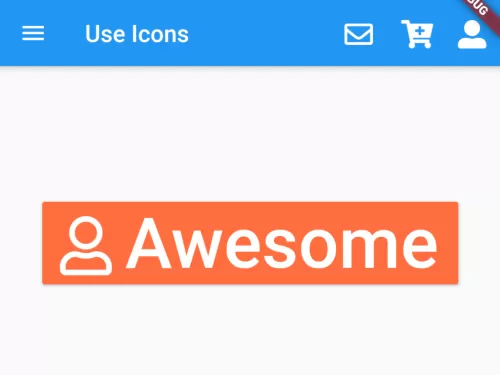
Flutter gives an inbuilt icon pack to use in your app, but it has very few icon sets, so you have to depend on other icon packs. Font Awesome is one of the best icon packs for flutter or web applications. See the example below and learn how to use Font Awesome Icons in your App.
Read this also:\u00a0How to Use Flat Icons on Flutter App
First, you need to add\u00a0font_awesome_flutter Flutter Package\u00a0in your dependency. Add the following line in your pubspec.yaml file.
dependencies:
  flutter:
    sdk: flutter
  font_awesome_flutter: ^8.8.1
Use Default Material Icon sets.
Icon(Icons.menu)Use Font Awesome Icon:
import 'package:font_awesome_flutter/font_awesome_flutter.dart';Icon(FontAwesomeIcons.cartPlus)Icon Size and Color:
Icon(FontAwesomeIcons.user,
    size: 50, //Icon Size
    color: Colors.white, //Color Of Icon
)
Find out Icon’s name from the\u00a0official website of Font Awesome. You will find 1500+ icons freely. Get the name of an icon and use it in Flutter. Be careful, the Icon name is not exactly the same in Flutter, but the starting word is similar. Use Visual Studio Code with Dart and Flutter extensions, it will suggest the name.

See the example below and find out the use of Font Awesome Icons.
import 'package:flutter/material.dart';
import 'package:flutter/widgets.dart';
import 'package:font_awesome_flutter/font_awesome_flutter.dart';

class UseFontAwesome extends StatelessWidget{
  @override
  Widget build(BuildContext context) {
    return Scaffold(
       appBar: AppBar(
           title: Text("Use Icons"),
           leading: Icon(Icons.menu),
           //placing inbuilt icon on leading of appbar
           actions: <Widget>[

               IconButton(
                 onPressed: (){},
                 icon: Icon(FontAwesomeIcons.envelope),
                 //using font awesome icon in action list of appbar
              ),

              IconButton(
                 onPressed: (){},
                 icon: Icon(FontAwesomeIcons.cartPlus),
                 //cart+ icon from FontAwesome
              ),

              IconButton(
                 onPressed: (){},
                 icon: Icon(FontAwesomeIcons.userAlt),
                 //cart+ icon from FontAwesome
              ),
           ],
       ), //set app bar

       body: Container(
          height:300, //height of container
          alignment: Alignment.center, //alignment of content
          padding:EdgeInsets.all(20), //padding of container wrapper
          child:RaisedButton.icon(
                onPressed:(){
                    //action for raised button.
                },
                icon: Icon(FontAwesomeIcons.user,
                    size: 50, //Icon Size
                    color: Colors.white, //Color Of Icon
                ),
                label: Text("Awesome", style: TextStyle(
                    fontSize: 60, //button font size
                    color: Colors.white //button font color
                ),),
                color: Colors.deepOrangeAccent, //color of button
          )
       )
    );
  }
}
Output:
In this way, you can use Icons in Flutter and make your app more attractive and interactive. To compare third-party icons with built-in Material assets, see standard icon widgets in Flutter and placing icons inside TextFields.
Updated Flutter Example
Material 3 & Vector Icon Architecture
Key Implementation Details & Modern Differences:
- Accessible Semantics: Implements explicit
semanticLabelproperties on all icons for screen reader accessibility. - Tree-Shaking Support: Follows Flutter build best practices to tree-shake unused icon fonts automatically.
- Category Filtering: Demonstrates dynamic icon cataloging and theme-aware color mapping.
import 'package:flutter/material.dart';

void main() {
  runApp(const MaterialApp(home: ModernIconPackDemo()));
}

/// Model representing an icon item with accessible semantic metadata.
class AppIconEntry {
  final String name;
  final IconData icon;
  final String category;
  final String semanticLabel;

  const AppIconEntry({
    required this.name,
    required this.icon,
    required this.category,
    required this.semanticLabel,
  });
}

class ModernIconPackDemo extends StatefulWidget {
  const ModernIconPackDemo({super.key});

  @override
  State<ModernIconPackDemo> createState() => _ModernIconPackDemoState();
}

class _ModernIconPackDemoState extends State<ModernIconPackDemo> {
  String _selectedCategory = 'All';

  static const List<AppIconEntry> _icons = [
    AppIconEntry(
      name: 'Favorite',
      icon: Icons.favorite,
      category: 'Social',
      semanticLabel: 'Heart like action icon',
    ),
    AppIconEntry(
      name: 'Share',
      icon: Icons.share,
      category: 'Social',
      semanticLabel: 'Share link icon',
    ),
    AppIconEntry(
      name: 'Code',
      icon: Icons.code,
      category: 'Development',
      semanticLabel: 'Programming code tags icon',
    ),
    AppIconEntry(
      name: 'Terminal',
      icon: Icons.terminal,
      category: 'Development',
      semanticLabel: 'Command line terminal icon',
    ),
    AppIconEntry(
      name: 'Security',
      icon: Icons.shield,
      category: 'System',
      semanticLabel: 'Security shield icon',
    ),
    AppIconEntry(
      name: 'Settings',
      icon: Icons.settings,
      category: 'System',
      semanticLabel: 'Application settings gear icon',
    ),
  ];

  @override
  Widget build(BuildContext context) {
    final theme = Theme.of(context);
    final filtered = _selectedCategory == 'All'
        ? _icons
        : _icons.where((i) => i.category == _selectedCategory).toList();

    return Scaffold(
      appBar: AppBar(
        title: const Text('Material 3 & Vector Icon Architecture'),
      ),
      body: Padding(
        padding: const EdgeInsets.all(20.0),
        child: Column(
          crossAxisAlignment: CrossAxisAlignment.stretch,
          children: [
            Wrap(
              spacing: 8,
              children: ['All', 'Social', 'Development', 'System'].map((cat) {
                return ChoiceChip(
                  label: Text(cat),
                  selected: _selectedCategory == cat,
                  onSelected: (selected) {
                    if (selected) {
                      setState(() {
                        _selectedCategory = cat;
                      });
                    }
                  },
                );
              }).toList(),
            ),
            const SizedBox(height: 20),
            Expanded(
              child: GridView.builder(
                gridDelegate: const SliverGridDelegateWithFixedCrossAxisCount(
                  crossAxisCount: 3,
                  crossAxisSpacing: 12,
                  mainAxisSpacing: 12,
                ),
                itemCount: filtered.length,
                itemBuilder: (context, idx) {
                  final item = filtered[idx];
                  return Card(
                    elevation: 0,
                    color: theme.colorScheme.surfaceContainerHighest,
                    child: InkWell(
                      borderRadius: BorderRadius.circular(12),
                      onTap: () {},
                      child: Column(
                        mainAxisAlignment: MainAxisAlignment.center,
                        children: [
                          Icon(
                            item.icon,
                            size: 32,
                            color: theme.colorScheme.primary,
                            semanticLabel: item.semanticLabel,
                          ),
                          const SizedBox(height: 8),
                          Text(
                            item.name,
                            style: theme.textTheme.labelMedium?.copyWith(
                              fontWeight: FontWeight.bold,
                            ),
                          ),
                        ],
                      ),
                    ),
                  );
                },
              ),
            ),
          ],
        ),
      ),
    );
  }
}
Document History & Archival Record
Original reference snapshot archived February 3, 2023. Updated working solution verified on modern Flutter & Dart SDKs.