
How to set Icon on TextField Widget in Flutter App
Verified Solution
Tested on Flutter 3.47.7 (Stable) • Dart 3.13.5
Jump to Updated Flutter Example ↓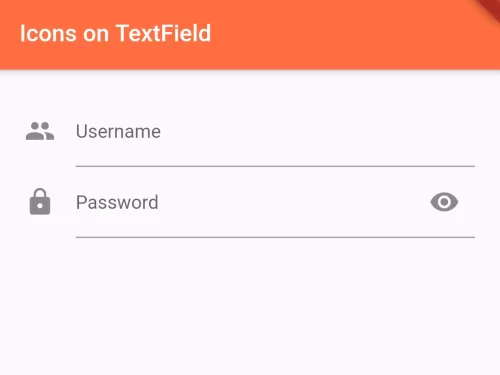
In this example, we are going to show you how to place an icon on TextField widget at first and last of input in the Flutter app. Icons are the best way to represent the data type of TextField. See the example below for more details:
To set Icon of TextField at Head and Tail of Input:
TextField(
  decoration: InputDecoration(
      icon: Icon(Icons.lock), //icon at head of input
      //prefixIcon: Icon(Icons.people), //you can use prefixIcon property too
      //prefisIcon sets Icon inside the TextField border, 'icon' sets outside border.
      suffixIcon: Icon(Icons.remove_red_eye) //icon at tail of input
  )
)
Full Code Example:
import 'package:flutter/material.dart';

void main(){
  runApp(MyApp());
}

class MyApp extends StatelessWidget{
  @override
  Widget build(BuildContext context) {
    return MaterialApp(
      home: Home(),
    );
  }
}

class Home extends StatefulWidget{
  @override
  _HomeState createState() => _HomeState();
}

class _HomeState extends State<Home> {

  TextEditingController username = TextEditingController();
  TextEditingController password = TextEditingController();
  @override
  void initState() {
    username.text = ""; //innitail value of text field
    password.text = "";
    super.initState();
  }

  @override
  Widget build(BuildContext context) {
    return  Scaffold(
          appBar: AppBar(
             title: Text("Icons on TextField"),
             backgroundColor: Colors.deepOrangeAccent,
          ),
          body: Container(
            padding: EdgeInsets.all(20),
            child: Column(
              children: [
                TextField(
                  controller: username,
                  decoration: InputDecoration(
                      labelText: "Username",
                      icon: Icon(Icons.people), //icon at head of input
                  )
                ),

                TextField(
                  controller: password,
                  decoration: InputDecoration(
                      icon: Icon(Icons.lock), //icon at head of input
                      //prefixIcon: Icon(Icons.people), //you can use prefixIcon property too.
                      labelText: "Password",
                      suffixIcon: Icon(Icons.remove_red_eye) //icon at tail of input
                  )
                ),

              ],
            ),
          )
       );
  }
}
Output Screenshot:

In this way, you can put icons on TextField widget in Flutter. To coordinate prefix or suffix icons with form aesthetics, explore TextField hints and styling and adding icons in Flutter.
Updated Flutter Example
Updated Flutter Example
TextField Prefix & Suffix Icon Architecture
Key Implementation Details & Modern Differences:
- Reactive Suffix Icons: Uses
ValueListenableBuilderto show clear buttons only when text is entered. - Interactive Clear & Visibility: Includes one-tap text clearing and password visibility toggling.
- Accessible Touch Targets: Wraps interactive suffix actions in accessible
IconButtonwith tooltips.
Updated Flutter Example Code
import 'package:flutter/material.dart';

void main() {
  runApp(const MaterialApp(home: ModernTextFieldIconsDemo()));
}

class ModernTextFieldIconsDemo extends StatefulWidget {
  const ModernTextFieldIconsDemo({super.key});

  @override
  State<ModernTextFieldIconsDemo> createState() =>
      _ModernTextFieldIconsDemoState();
}

class _ModernTextFieldIconsDemoState extends State<ModernTextFieldIconsDemo> {
  final TextEditingController _searchController = TextEditingController();
  final TextEditingController _passwordController = TextEditingController();
  bool _obscurePassword = true;

  @override
  void dispose() {
    _searchController.dispose();
    _passwordController.dispose();
    super.dispose();
  }

  @override
  Widget build(BuildContext context) {
    return Scaffold(
      appBar: AppBar(title: const Text('TextField Prefix & Suffix Icons')),
      body: SingleChildScrollView(
        padding: const EdgeInsets.all(24.0),
        child: Column(
          crossAxisAlignment: CrossAxisAlignment.stretch,
          children: [
            // Search Input with Prefix Search Icon and Reactive Clear Button
            ValueListenableBuilder<TextEditingValue>(
              valueListenable: _searchController,
              builder: (context, value, _) {
                return TextField(
                  controller: _searchController,
                  decoration: InputDecoration(
                    labelText: 'Search Query',
                    prefixIcon: const Icon(Icons.search),
                    suffixIcon: value.text.isNotEmpty
                        ? IconButton(
                            icon: const Icon(Icons.clear),
                            tooltip: 'Clear search text',
                            onPressed: () => _searchController.clear(),
                          )
                        : null,
                    border: const OutlineInputBorder(),
                  ),
                );
              },
            ),
            const SizedBox(height: 24),
            // Password Input with Security Prefix and Visibility Toggle Suffix
            TextField(
              controller: _passwordController,
              obscureText: _obscurePassword,
              decoration: InputDecoration(
                labelText: 'Account Password',
                prefixIcon: const Icon(Icons.lock_outline),
                suffixIcon: IconButton(
                  icon: Icon(
                    _obscurePassword ? Icons.visibility_off : Icons.visibility,
                  ),
                  tooltip: _obscurePassword ? 'Show password' : 'Hide password',
                  onPressed: () {
                    setState(() {
                      _obscurePassword = !_obscurePassword;
                    });
                  },
                ),
                border: const OutlineInputBorder(),
              ),
            ),
          ],
        ),
      ),
    );
  }
}
Document History & Archival Record
Original reference snapshot archived April 1, 2023. Updated working solution verified on modern Flutter & Dart SDKs.