
How to add Password Input TextField in Flutter
Verified Solution
Tested on Flutter 3.47.7 • Dart 3.13.5
Jump to Updated Flutter Example ↓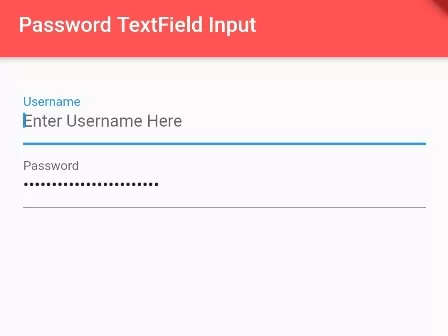
In this example, we are going to show you the easiest to add password input type text field in Flutter app. Password filed is very important to get secret data like in login form. See the example below:
How to add Password Input TextField:
TextField(
  obscureText: true,
)
You need to pass “true” on “obscureText” property in TextField to enable Password input.
TextFormField(
  obscureText: true,
)
You can do same with TextFormField.
Full Code Example:
import 'package:flutter/material.dart';
void main() {
  runApp(
    MaterialApp(
      home: MyApp(),
    )
  );
}

class MyApp extends StatefulWidget{
  @override
  _MyAppState createState() => _MyAppState();
}

class _MyAppState extends State<MyApp> {

  @override
  Widget build(BuildContext context) {
    return Scaffold(
          appBar: AppBar(
              title:Text("Password TextField Input"),
              backgroundColor: Colors.redAccent,
          ),
          body: Container(
                  height: 200,
                  alignment: Alignment.center,
                  padding: EdgeInsets.all(20),
                  child: Column(
                     children: [

                       TextField(
                          decoration: InputDecoration(
                              hintText: "Enter Username Here",
                              labelText: "Username"
                          ),
                       ),

                       TextField(
                          obscureText: true,
                          decoration: InputDecoration(
                              hintText: "Enter Password Here",
                              labelText: "Password"
                          ),
                       ),

                     ],
                  )
          )
      );
  }
}
Output Screenshot:

In this way, you can add Password Input TextFiled in Flutter App. To let users inspect their entered credentials, learn how to toggle password visibility on TextField and set custom labels and hints on TextFields.
Updated Flutter Example
Updated Flutter Example
Secure Password Input Field with Interactive Visibility Toggle
Key Implementation Details & Modern Differences:
- Interactive Visibility Toggle: Employs a stateful
_obscurePasswordboolean and anIconButtonsuffix to toggle between masked text and clear text on demand. - Platform Autofill Integration: Declares
autofillHints: const [AutofillHints.password]to allow mobile password managers (iOS Keychain, Android Autofill) to suggest credentials seamlessly. - Controller Cleanup: Pairs
TextEditingControllerwith lifecycle cleanup indispose()to prevent native memory leaks.
Updated Flutter Example Code
import 'package:flutter/material.dart';

void main() {
  runApp(const MaterialApp(home: ModernPasswordInputFieldDemo()));
}

class ModernPasswordInputFieldDemo extends StatefulWidget {
  const ModernPasswordInputFieldDemo({super.key});

  @override
  State<ModernPasswordInputFieldDemo> createState() =>
      _ModernPasswordInputFieldDemoState();
}

class _ModernPasswordInputFieldDemoState
    extends State<ModernPasswordInputFieldDemo> {
  final TextEditingController _passwordController = TextEditingController();
  bool _obscurePassword = true;

  @override
  void dispose() {
    _passwordController.dispose();
    super.dispose();
  }

  @override
  Widget build(BuildContext context) {
    return Scaffold(
      appBar: AppBar(
        title: const Text('Password Input Architecture'),
      ),
      body: Padding(
        padding: const EdgeInsets.all(20.0),
        child: Column(
          children: [
            TextFormField(
              controller: _passwordController,
              obscureText: _obscurePassword,
              autofillHints: const [AutofillHints.password],
              decoration: InputDecoration(
                labelText: 'Password',
                border: const OutlineInputBorder(),
                prefixIcon: const Icon(Icons.lock_outline),
                suffixIcon: IconButton(
                  icon: Icon(
                    _obscurePassword
                        ? Icons.visibility_outlined
                        : Icons.visibility_off_outlined,
                  ),
                  tooltip:
                      _obscurePassword ? 'Show password' : 'Hide password',
                  onPressed: () {
                    setState(() => _obscurePassword = !_obscurePassword);
                  },
                ),
              ),
            ),
          ],
        ),
      ),
    );
  }
}
Document History & Archival Record
Original reference snapshot archived February 3, 2023. Updated working solution verified on modern Flutter & Dart SDKs.