
How to show Toast Message in Flutter
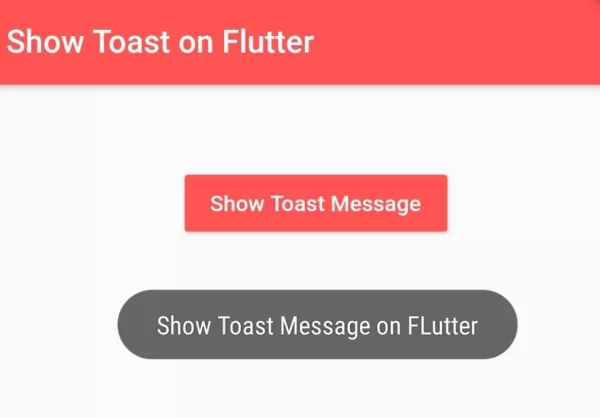
Toast is the best way to show the message in Flutter because it gets dismissed automatically, doesn\u2019t affect any other UI components, and looks app interactive. See the example below and learn to show the Toast message when a button is pressed or on any action.
To show Toast message, you need to add\u00a0fluttertoast Flutter package in dependency by adding the\u00a0following line in pubspec.yaml file.
dependencies:
  flutter:
    sdk: flutter
  fluttertoast: ^4.0.0
You can show toast by using the following code:
Fluttertoast.showToast(
   msg: message, //message to show toast
   toastLength: Toast.LENGTH_LONG, //duration for message to show
   gravity: ToastGravity.CENTER, //where you want to show, top, bottom
   timeInSecForIosWeb: 1, //for iOS only
   //backgroundColor: Colors.red, //background Color for message
   textColor: Colors.white, //message text color
   fontSize: 16.0 //message font size
);
Cancel all Toast using:
Fluttertoast.cancel();Show toast on Button Click (Full Code):
import 'package:flutter/material.dart';
import 'package:flutter/widgets.dart';
import 'package:fluttertoast/fluttertoast.dart';

void main() {
  runApp(MyApp());
}

class MyApp extends StatelessWidget{
  @override
  Widget build(BuildContext context) {
    return MaterialApp(
        title: "Test App",
        home: ShowToast(),
    );
  }
}

class ShowToast extends StatelessWidget{
  @override
  Widget build(BuildContext context) {
    return Scaffold(
       appBar: AppBar(
         title: Text("Show Toast on Flutter"),
         backgroundColor: Colors.redAccent,
       ),
       body: Container(
           height: 150,
           alignment: Alignment.center, //align content to center
           padding: EdgeInsets.all(20),
           child:RaisedButton(
             onPressed: (){
                showToastMessage("Show Toast Message on Flutter");
             },
             colorBrightness: Brightness.dark, //background color is dark
             color: Colors.redAccent, //set background color is redAccent
             child: Text("Show Toast Message"),
           ),
       )
    );
  }

  //create this function, so that, you needn't to configure toast every time
  void showToastMessage(String message){
     Fluttertoast.showToast(
        msg: message, //message to show toast
        toastLength: Toast.LENGTH_LONG, //duration for message to show
        gravity: ToastGravity.CENTER, //where you want to show, top, bottom
        timeInSecForIosWeb: 1, //for iOS only
        //backgroundColor: Colors.red, //background Color for message
        textColor: Colors.white, //message text color
        fontSize: 16.0 //message font size
    );
  }

}
Output Screenshot:

In this way, you can show toast message with button click and make your app more interactive. For situations requiring blocking modal alerts rather than brief toasts, see how to handle dismissing showDialog in Flutter and preventing dialog dismissal on outside touch.
Updated Flutter Example
Material 3 Floating SnackBars & Overlay Messages
Key Implementation Details & Modern Differences:
- Zero-Plugin Architecture: Replaces obsolete, unmaintained third-party native toast packages with official
ScaffoldMessenger. - Floating Toast Geometry: Configures
SnackBarBehavior.floatingwith rounded corners and leading icons for a clean, non-intrusive notification overlay. - Cross-Platform Compatibility: Operates natively and uniformly across Android, iOS, Web, macOS, Linux, and Windows without platform channel limitations.
import 'package:flutter/material.dart';

void main() {
  runApp(const MaterialApp(home: ModernToastDemo()));
}

/// Modern alternative to abandoned native toast plugins using ScaffoldMessenger.
class ModernToastService {
  /// Displays a floating Material 3 SnackBar notification mimicking modern toast behavior.
  static void showToast(
    BuildContext context, {
    required String message,
    IconData? icon,
    Duration duration = const Duration(seconds: 3),
    VoidCallback? onAction,
    String? actionLabel,
  }) {
    final theme = Theme.of(context);
    final scaffoldMessenger = ScaffoldMessenger.of(context);

    // Clear existing snackbars to avoid queue backlog
    scaffoldMessenger.removeCurrentSnackBar();

    scaffoldMessenger.showSnackBar(
      SnackBar(
        content: Row(
          children: [
            if (icon != null) ...[
              Icon(icon, color: theme.colorScheme.onInverseSurface, size: 20),
              const SizedBox(width: 12),
            ],
            Expanded(
              child: Text(
                message,
                style: TextStyle(color: theme.colorScheme.onInverseSurface),
              ),
            ),
          ],
        ),
        behavior: SnackBarBehavior.floating,
        shape: RoundedRectangleBorder(borderRadius: BorderRadius.circular(12)),
        duration: duration,
        action: (actionLabel != null && onAction != null)
            ? SnackBarAction(
                label: actionLabel,
                textColor: theme.colorScheme.inversePrimary,
                onPressed: onAction,
              )
            : null,
      ),
    );
  }
}

class ModernToastDemo extends StatelessWidget {
  const ModernToastDemo({super.key});

  @override
  Widget build(BuildContext context) {
    return Scaffold(
      appBar: AppBar(title: const Text('Modern Toast Architecture')),
      body: Center(
        child: SingleChildScrollView(
          padding: const EdgeInsets.all(20.0),
          child: Column(
            mainAxisAlignment: MainAxisAlignment.center,
            children: [
              FilledButton.icon(
                onPressed: () {
                  ModernToastService.showToast(
                    context,
                    message: 'Action completed successfully!',
                    icon: Icons.check_circle_outline,
                  );
                },
                icon: const Icon(Icons.check),
                label: const Text('Show Success Toast'),
              ),
              const SizedBox(height: 16),
              FilledButton.tonalIcon(
                onPressed: () {
                  ModernToastService.showToast(
                    context,
                    message: 'Connection restored to server',
                    icon: Icons.info_outline,
                    actionLabel: 'Details',
                    onAction: () {},
                  );
                },
                icon: const Icon(Icons.info),
                label: const Text('Show Info Toast with Action'),
              ),
            ],
          ),
        ),
      ),
    );
  }
}
Document History & Archival Record
Original reference snapshot archived June 22, 2021. Updated working solution verified on modern Flutter & Dart SDKs.