
How to Add Padding/Margin on Text Widget in Flutter
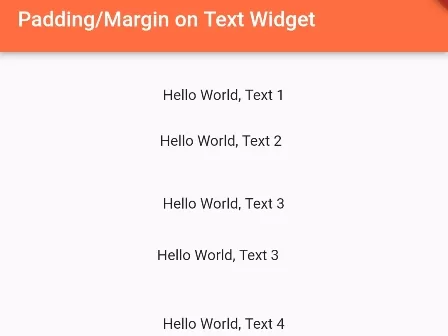
In this example, you will learn different ways to add padding and margin on the Text widget in Flutter. We will use, Padding() and Container() widget to wrap Text() widget and apply padding and margin. Furthermore, you will learn about EdgeInsets method.
Apply Padding using Padding() widget:
Apply padding to all sides:
Padding(
  padding: EdgeInsets.all(15), //apply padding to all four sides
  child: Text("Hello World, Text 1"),
),
Apply padding to specific side only:
Padding(
  padding: EdgeInsets.only(left:15, bottom: 20, right: 20, top:10), //apply padding to some sides only
  child: Text("Hello World, Text 2"),
),
Apply padding horizontally or vertically:
Padding(
  padding: EdgeInsets.symmetric(horizontal: 20, vertical: 20), //apply padding horizontal or vertical only
  child: Text("Hello World, Text 3"),
),
Apply padding by Left, Top, Right, Bottom:
Padding(
  padding: EdgeInsets.fromLTRB(10, 10, 20, 20), //apply padding to LTRB, L:Left, T:Top, R:Right, B:Bottom
  child: Text("Hello World, Text 3"),
),
Apply Padding and Margin using Container Widget:
Container( //apply margin and padding using Container Widget.
  padding: EdgeInsets.all(20), //You can use EdgeInsets like above
  margin: EdgeInsets.all(5),
  child: Text("Hello World, Text 4"),
),
You can use EdgeInsets like shown above in the Container widget.
Full Code Example:
import 'package:flutter/material.dart';

void main() {
  runApp(
    MaterialApp(
      home: MyApp()
    )
  );
}

class MyApp extends StatefulWidget{
  @override
  State<MyApp> createState() => _MyAppState();
}

class _MyAppState extends State<MyApp> {
  @override
  Widget build(BuildContext context) {
    return Scaffold(
          appBar: AppBar(
              title:Text("Padding/Margin on Text Widget"),
              backgroundColor: Colors.deepOrangeAccent
          ),
          body: Container(
            alignment:Alignment.topCenter,
            padding: EdgeInsets.all(15),
             child: Column(
               children:[
                        Padding(
                          padding: EdgeInsets.all(15), //apply padding to all four sides
                          child: Text("Hello World, Text 1"),
                        ),

                        Padding(
                          padding: EdgeInsets.only(left:15, bottom: 20, right: 20, top:10), //apply padding to some sides only
                          child: Text("Hello World, Text 2"),
                        ),

                        Padding(
                          padding: EdgeInsets.symmetric(horizontal: 20, vertical: 20), //apply padding horizontal or vertical only
                          child: Text("Hello World, Text 3"),
                        ),

                        Padding(
                          padding: EdgeInsets.fromLTRB(10, 10, 20, 20), //apply padding to LTRB, L:Left, T:Top, R:Right, B:Bottom
                          child: Text("Hello World, Text 3"),
                        ),

                        Container( //apply margin and padding using Container Widget.
                          padding: EdgeInsets.all(20), //You can use EdgeInsets like above
                          margin: EdgeInsets.all(5),
                          child: Text("Hello World, Text 4"),
                        ),
               ]
             )
          )
      );
  }
}
Output Screenshot:

In this way, you can add padding and margin on Text Widget in Flutter apps. To refine text presentation further, explore font styling on text widgets and applying font shadow on text widgets.
Updated Flutter Example
Padding and Margin Layout Architecture
Key Implementation Details & Modern Differences:
- Dedicated Padding Architecture: Leverages the lightweight
Paddingwidget for internal spacing instead of heavy full-container instantiations. - Directional Spacing for RTL: Uses
EdgeInsetsDirectionalto guarantee automatic internationalization and right-to-left layout compliance. - Container Margin Composition: Demonstrates outer layout separation (margin) versus inner child separation (padding) using modern Material 3 cards.
import 'package:flutter/material.dart';

void main() {
  runApp(const MaterialApp(home: ModernPaddingMarginDemo()));
}

/// Helper demonstrating idiomatic spacing in Flutter.
class SpacingArchitecture {
  static const EdgeInsets symmetricContentPadding = EdgeInsets.symmetric(
    horizontal: 16.0,
    vertical: 12.0,
  );

  static const EdgeInsetsDirectional directionalItemPadding =
      EdgeInsetsDirectional.only(start: 24.0, end: 12.0, top: 8.0, bottom: 8.0);
}

class ModernPaddingMarginDemo extends StatefulWidget {
  const ModernPaddingMarginDemo({super.key});

  @override
  State<ModernPaddingMarginDemo> createState() =>
      _ModernPaddingMarginDemoState();
}

class _ModernPaddingMarginDemoState extends State<ModernPaddingMarginDemo> {
  double _paddingValue = 16.0;
  final double _marginValue = 12.0;

  @override
  Widget build(BuildContext context) {
    final theme = Theme.of(context);

    return Scaffold(
      appBar: AppBar(title: const Text('Padding and Margin Architecture')),
      body: SingleChildScrollView(
        padding: const EdgeInsets.all(20.0),
        child: Column(
          crossAxisAlignment: CrossAxisAlignment.start,
          children: [
            Text(
              'Outer Container (Margin: ${_marginValue}px)',
              style: theme.textTheme.titleMedium,
            ),
            const SizedBox(height: 8),
            Container(
              margin: EdgeInsets.all(_marginValue),
              decoration: BoxDecoration(
                color: theme.colorScheme.surfaceContainerHighest,
                borderRadius: BorderRadius.circular(12),
                border: Border.all(color: theme.colorScheme.outlineVariant),
              ),
              child: Padding(
                padding: EdgeInsets.all(_paddingValue),
                child: Container(
                  padding: const EdgeInsets.all(12),
                  decoration: BoxDecoration(
                    color: theme.colorScheme.primaryContainer,
                    borderRadius: BorderRadius.circular(8),
                  ),
                  child: Text(
                    'Inner Text with Padding (${_paddingValue}px)',
                    key: const Key('inner-text-target'),
                    style: TextStyle(
                      color: theme.colorScheme.onPrimaryContainer,
                      fontWeight: FontWeight.bold,
                    ),
                  ),
                ),
              ),
            ),
            const SizedBox(height: 20),
            Row(
              children: [
                FilledButton.tonal(
                  onPressed: () => setState(() => _paddingValue = 28.0),
                  child: const Text('Increase Padding'),
                ),
                const SizedBox(width: 12),
                FilledButton.tonal(
                  onPressed: () => setState(() => _paddingValue = 8.0),
                  child: const Text('Compact Padding'),
                ),
              ],
            ),
            const Divider(height: 36),
            Text(
              'Modern Architecture: In Flutter, Padding is a dedicated layout widget. '
              'Container combines decoration and padding/margin, but for simple spacing '
              'around text or icons, standalone Padding or EdgeInsetsDirectional is preferred.',
              style: theme.textTheme.bodySmall?.copyWith(
                color: Colors.grey[700],
              ),
            ),
          ],
        ),
      ),
    );
  }
}
Document History & Archival Record
Original reference snapshot archived February 2, 2023. Updated working solution verified on modern Flutter & Dart SDKs.