
How to add Icon on Elevated Button in Flutter App
Verified Solution
Tested on Flutter 3.47.7 • Dart 3.13.5
Jump to Updated Flutter Example ↓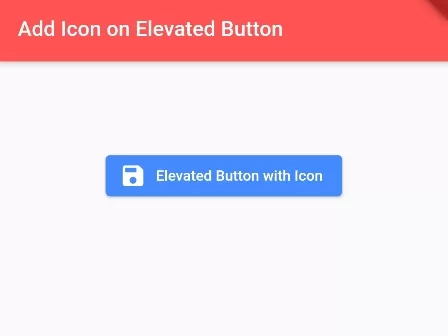
In this example code, we are going to show you the easiest way to add icon on Elevated Button. Icons are very important to represent the action of task of any widget inside app. See the example below:
How to Add Icon on Elevated Button:
ElevatedButton.icon(
    onPressed: (){
      print("You pressed Icon Elevated Button");
    },
    icon: Icon(Icons.save),  //icon data for elevated button
    label: Text("Elevated Button with Icon"), //label text
)
You can simply add ElevatedButton.icon() widget, you will get the icon property where you can pass Icon data to add Icon on Elevated Button.
Full Code Example:
import 'package:flutter/material.dart';
void main() {
  runApp(
    MaterialApp(
      home: MyApp(),
    )
  );
}

class MyApp extends StatefulWidget{
  @override
  _MyAppState createState() => _MyAppState();
}

class _MyAppState extends State<MyApp> {

  @override
  Widget build(BuildContext context) {
    return Scaffold(
          appBar: AppBar(
              title:Text("Add Icon on Elevated Button"),
              backgroundColor: Colors.redAccent,
          ),
          body: Container(
                  height: 200,
                  alignment: Alignment.center,
                  padding: EdgeInsets.all(20),
                  child: ElevatedButton.icon(
                      onPressed: (){
                        print("You pressed Icon Elevated Button");
                      },
                      icon: Icon(Icons.save),  //icon data for elevated button
                      label: Text("Elevated Button with Icon"), //label text
                      style: ElevatedButton.styleFrom(
                         primary: Colors.blueAccent //elevated btton background color
                      ),
                  ),
          )
      );
  }
}
Output Screenshot:

In this way, you can add Icon on Elevated button in Flutter app. To customize button dimensions and colors alongside icons, see styling ElevatedButtons and enabling and disabling buttons dynamically.
Updated Flutter Example
Updated Flutter Example
Material 3 ElevatedButton.icon Architecture
Key Implementation Details & Modern Differences:
- Icon Integration: Uses
ElevatedButton.iconfor idiomatic spacing between icon and text labels. - Dynamic Asynchronous Loading State: Replaces static icons with a sized
CircularProgressIndicatorduring asynchronous operations. - Material 3 Theme Styling: Customizes button styling with
ButtonStyle, elevation states, and custom foreground/background colors.
Updated Flutter Example Code
import 'package:flutter/material.dart';

void main() {
  runApp(const MaterialApp(home: ModernElevatedButtonIconDemo()));
}

class ModernElevatedButtonIconDemo extends StatefulWidget {
  const ModernElevatedButtonIconDemo({super.key});

  @override
  State<ModernElevatedButtonIconDemo> createState() =>
      _ModernElevatedButtonIconDemoState();
}

class _ModernElevatedButtonIconDemoState
    extends State<ModernElevatedButtonIconDemo> {
  bool _isLoading = false;
  String _submissionStatus = 'Ready to Submit';

  Future<void> _handleUpload() async {
    setState(() {
      _isLoading = true;
      _submissionStatus = 'Uploading data...';
    });

    await Future.delayed(const Duration(milliseconds: 50));
    if (!mounted) return;

    setState(() {
      _isLoading = false;
      _submissionStatus = 'Upload successful!';
    });
  }

  @override
  Widget build(BuildContext context) {
    final theme = Theme.of(context);

    return Scaffold(
      appBar: AppBar(title: const Text('ElevatedButton.icon Architecture')),
      body: Padding(
        padding: const EdgeInsets.all(20.0),
        child: Column(
          crossAxisAlignment: CrossAxisAlignment.start,
          children: [
            Card.outlined(
              child: Padding(
                padding: const EdgeInsets.all(16.0),
                child: Text(
                  'Status: $_submissionStatus',
                  key: const Key('submission-status-text'),
                  style: theme.textTheme.titleMedium,
                ),
              ),
            ),
            const SizedBox(height: 24),
            ElevatedButton.icon(
              onPressed: _isLoading ? null : _handleUpload,
              icon: _isLoading
                  ? const SizedBox(
                      width: 18,
                      height: 18,
                      child: CircularProgressIndicator(strokeWidth: 2),
                    )
                  : const Icon(Icons.cloud_upload_outlined),
              label: Text(_isLoading ? 'Processing...' : 'Upload Document'),
              style: ElevatedButton.styleFrom(
                padding: const EdgeInsets.symmetric(
                  horizontal: 24,
                  vertical: 14,
                ),
                shape: RoundedRectangleBorder(
                  borderRadius: BorderRadius.circular(10),
                ),
              ),
            ),
            const Divider(height: 36),
            Text(
              'Modern Architecture: ElevatedButton.icon cleanly pairs leading icons with '
              'labels using correct typography and spacing tokens. When disabled during loading, '
              'onPressed is set to null to prevent re-entrant duplicate submissions.',
              style: theme.textTheme.bodySmall?.copyWith(
                color: Colors.grey[700],
              ),
            ),
          ],
        ),
      ),
    );
  }
}
Document History & Archival Record
Original reference snapshot archived February 3, 2023. Updated working solution verified on modern Flutter & Dart SDKs.