
How to Fix Widget at Top/Bottom in Flutter
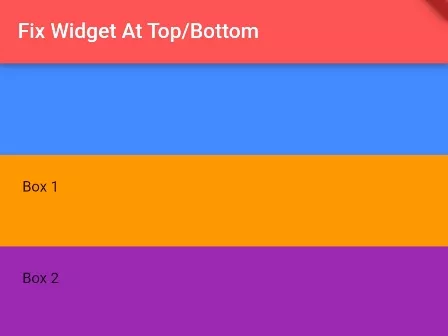
In this example, we will show you how to fix any widget at the top and bottom of the screen so that it can stick to its position while scrolling. This type of UI design is needed when you are making a sticky header or footer in your app.
See this also: How to Position Widget in Stack Layout in Flutter
How to Position Widget at Top/Bottom in Flutter:
List<int> nums = [1,2,3,4,5,6,7,8,9,10];Stack(
children: [
Positioned(
top: 80, //display after the height of top widtet
bottom: 100, //display untill the height of bottom widget
left:0, right:0,
//mention top, bottom, left, right, for full size widget
child: SingleChildScrollView( //content widget tree
child: Column(
children: nums.map((num){
return Container(
width: double.infinity, //width 100%;
height: 80,
padding: EdgeInsets.all(20),
color: num % 2 == 0?Colors.purple:Colors.orange,
child: Text("Box $num"),
);
}).toList(),
),
)
),
//set top/bottom widget after content,
//other wise it wil go below content
Positioned( //position at top
top: 0,
left:0, right:0, //set left right to 0 for 100% width
child: Container( //your top widget tree
height: 80,
color: Colors.blueAccent
)
),
Positioned( //position at bottom
bottom: 0,
left:0, right:0, //set left right to 0 for 100% width
child: Container( //your bototm widget tree
height: 100,
color: Colors.greenAccent
)
),
],
)You can use Positioned widget to achieve the sticker widget at the top and bottom of your app screen. The “top, bottom, left, right” parameters have their own use while positioning the widget. See the full example below to understand more:
Full App Example:
import 'package:flutter/material.dart';

void main(){
  runApp(MyApp());
}

class MyApp extends StatelessWidget{
  @override
  Widget build(BuildContext context) {
    return MaterialApp(
      home: Home(),
    );
  }
}

class Home extends StatefulWidget{
  @override
  _HomeState createState() => _HomeState();
}

class _HomeState extends State<Home> {

  List<int> nums = [1,2,3,4,5,6,7,8,9,10];

  @override
  Widget build(BuildContext context) {
    return  Scaffold(
          appBar: AppBar(
            title: Text("Fix Widget At Top/Bottom"),
            backgroundColor: Colors.redAccent
          ),

          body: Stack(
            children: [
                Positioned(
                  top: 80, //display after the height of top widtet
                  bottom: 100, //display untill the height of bottom widget
                  left:0, right:0,
                  //mention top, bottom, left, right, for full size widget
                  child: SingleChildScrollView(  //content widget tree
                     child: Column(
                        children: nums.map((num){
                            return Container(
                                width: double.infinity, //width 100%;
                                height: 80,
                                padding: EdgeInsets.all(20),
                                color: num % 2 == 0?Colors.purple:Colors.orange,
                                child: Text("Box $num"),
                            );
                        }).toList(),
                     ),

                  )
                ),

                //set top/bottom widget after content,
                //other wise it wil go below content
                Positioned( //position at top
                  top: 0,
                  left:0, right:0, //set left right to 0 for 100% width
                  child: Container( //your top widget tree
                     height: 80,
                     color: Colors.blueAccent
                  )
                ),

                Positioned( //position at bottom
                  bottom: 0,
                  left:0, right:0, //set left right to 0 for 100% width
                  child: Container( //your bototm widget tree
                     height: 100,
                     color: Colors.greenAccent
                  )
                ),

            ],
          )
       );
  }
}
Output Screenshot:
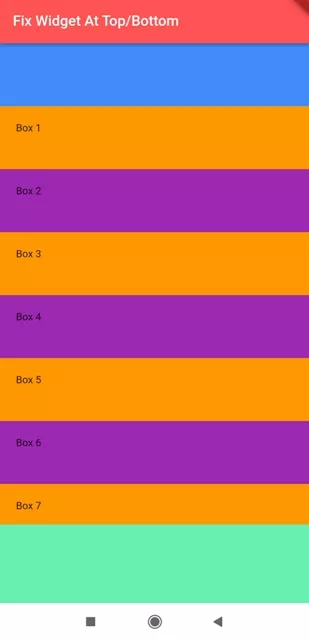
In this way, you can fix any widget at the top or bottom of your app screen in Flutter. To arrange layered views across the screen, see how to position widgets in Stack layouts and get device screen dimensions.
Updated Flutter Example
Top & Bottom Viewport Docking Architecture
Key Implementation Details & Modern Differences:
- Docked Scaffold Layout: Leverages official
Scaffold.bottomNavigationBarandAppBarfor anchored positioning. - SafeArea Keyboard Inset Protection: Wraps docked bottom bars with
SafeAreato prevent notch and home indicator clipping. - Unbounded Body Scrolling: Ensures central content scrolls freely while viewport bars remain firmly anchored.
import 'package:flutter/material.dart';

void main() {
  runApp(const MaterialApp(home: ModernViewportDockingDemo()));
}

/// Production architecture for top & bottom viewport docking in Flutter.
class ModernViewportDockingDemo extends StatelessWidget {
  const ModernViewportDockingDemo({super.key});

  @override
  Widget build(BuildContext context) {
    final theme = Theme.of(context);

    return Scaffold(
      // Top Docked Header
      appBar: AppBar(
        title: const Text('Viewport Docking Architecture'),
        elevation: 2,
      ),
      // Scrollable Central Body
      body: ListView.builder(
        padding: const EdgeInsets.all(16.0),
        itemCount: 20,
        itemBuilder: (context, index) {
          return Card(
            elevation: 0,
            margin: const EdgeInsets.only(bottom: 12.0),
            color: theme.colorScheme.surfaceContainerLow,
            child: ListTile(
              leading: CircleAvatar(
                backgroundColor: theme.colorScheme.primaryContainer,
                child: Text('${index + 1}'),
              ),
              title: Text('Scrollable Content Item ${index + 1}'),
              subtitle: const Text('Scrolls freely between docked bars'),
            ),
          );
        },
      ),
      // Bottom Docked Bar via Scaffold.bottomNavigationBar with SafeArea
      bottomNavigationBar: SafeArea(
        child: Container(
          padding: const EdgeInsets.symmetric(horizontal: 20.0, vertical: 12.0),
          decoration: BoxDecoration(
            color: theme.colorScheme.surface,
            border: Border(
              top: BorderSide(color: theme.colorScheme.outlineVariant),
            ),
          ),
          child: Row(
            children: [
              Expanded(
                child: OutlinedButton(
                  onPressed: () {},
                  child: const Text('Cancel'),
                ),
              ),
              const SizedBox(width: 16),
              Expanded(
                child: FilledButton(
                  onPressed: () {},
                  child: const Text('Save Changes'),
                ),
              ),
            ],
          ),
        ),
      ),
    );
  }
}
Document History & Archival Record
Original reference snapshot archived March 22, 2023. Updated working solution verified on modern Flutter & Dart SDKs.