
How to Add Circular Elevated Button in Flutter
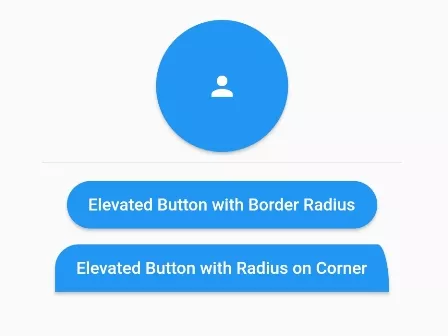
In this example, we are going to show you how to add border radius to ElevatedButton() and make it circular or its corner circular. Circular Elevated Buttons looks beautiful and you may need them while building your flutter app. See the example below:
Previously, we have described how to change background color, size, border, border-radius of Elevated Button, check it out.
How to Add Border Radius to Elevated Button:
ElevatedButton(
      onPressed: (){},
      child: Text("Elevated Button with Border Radius"),
      style: ElevatedButton.styleFrom(
          shape: RoundedRectangleBorder(
              borderRadius: BorderRadius.circular(30),
            )
      ),
)
You can add Border radius to Elevated button by applying style on “style” attribute of Elevated Button like above.
How to Add Border Radius to Specific corner of Elevated Button:
ElevatedButton(
      onPressed: (){},
      child: Text("Elevated Button with Radius on Corner"),
      style: ElevatedButton.styleFrom(
          shape: RoundedRectangleBorder(
              borderRadius: BorderRadius.only(
                  topLeft: Radius.circular(20),
                  topRight: Radius.elliptical(10, 40)
                  //  bottomLeft:, bottom left
                  // bottomRight: bottom right
              )
            )
      ),
)
You can add border radius to specific corner of Elevated Button like above. You can add two kinds of border radius, i.e. circular and elliptical. See the output below of this code.
How to Make Circular Elevated Button:
SizedBox(
  height:100,width: 100,
  child:ElevatedButton(
    onPressed: (){},
    child: Icon(Icons.person),
    style: ElevatedButton.styleFrom(
        shape: RoundedRectangleBorder(
            borderRadius: BorderRadius.circular(50),
            //border radius equal to or more than 50% of width
          )
    ),
  )
)
To make a perfect circular Elevated Button, you need to make height and width equal. Here, we resize the Elevated Button with SizedBox() widget. After that, we apply border radius equal to or more than 50% of height or width.
Full Code Example:
import 'package:flutter/material.dart';
Future<void> main() async {
  runApp(MyApp());
}

class MyApp extends StatelessWidget{
  @override
  Widget build(BuildContext context) {
    return MaterialApp(
      home: Home(),
    );
  }
}

class Home extends StatefulWidget{
  @override
  _HomeState createState() => _HomeState();
}

class _HomeState extends State<Home> {
  @override
  Widget build(BuildContext context) {
    return  Scaffold(
          body: Container(
            padding: EdgeInsets.all(60),
            alignment: Alignment.center,
            child: Column(children: [
                 SizedBox(
                   height:100,width: 100,
                   child:ElevatedButton(
                      onPressed: (){},
                      child: Icon(Icons.person),
                      style: ElevatedButton.styleFrom(
                          shape: RoundedRectangleBorder(
                              borderRadius: BorderRadius.circular(50),
                              //border radius equal to or more than 50% of width
                            )
                      ),
                    )
                 ),

                 Divider(),

                ElevatedButton(
                      onPressed: (){},
                      child: Text("Elevated Button with Border Radius"),
                      style: ElevatedButton.styleFrom(
                          shape: RoundedRectangleBorder(
                              borderRadius: BorderRadius.circular(30),
                            )
                      ),
                ),

                ElevatedButton(
                      onPressed: (){},
                      child: Text("Elevated Button with Radius on Corner"),
                      style: ElevatedButton.styleFrom(
                          shape: RoundedRectangleBorder(
                              borderRadius: BorderRadius.only(
                                  topLeft: Radius.circular(20),
                                  topRight: Radius.elliptical(10, 40)
                                  //  bottomLeft:, bottom left
                                  // bottomRight: bottom right
                              )
                            )
                      ),
                ),

            ],)
          )
       );
  }
}
Output Screenshot of this Code:

In this way, you can apply border radius to Elevated Button and make it circular in Flutter. For comprehensive button design options, explore styling ElevatedButtons and learn how to enable or disable buttons dynamically.
Updated Flutter Example
Material 3 Circular Button Geometries
Key Implementation Details & Modern Differences:
- Material 3 CircleBorder: Configures
ElevatedButtonwithCircleBorder()and uniform padding for perfect circular geometries. - Official IconButton Variants: Demonstrates modern
IconButton.filledandIconButton.filledTonalripple interactions. - Elevation & Contrast Tuning: Uses color scheme design tokens for elevated primary and tonal action buttons.
import 'package:flutter/material.dart';

void main() {
  runApp(const MaterialApp(home: ModernCircularButtonDemo()));
}

/// Production demonstration of Material 3 circular button architectures.
class ModernCircularButtonDemo extends StatefulWidget {
  const ModernCircularButtonDemo({super.key});

  @override
  State<ModernCircularButtonDemo> createState() =>
      _ModernCircularButtonDemoState();
}

class _ModernCircularButtonDemoState extends State<ModernCircularButtonDemo> {
  int _counter = 0;

  @override
  Widget build(BuildContext context) {
    final theme = Theme.of(context);

    return Scaffold(
      appBar: AppBar(title: const Text('Circular Button Architecture')),
      body: Center(
        child: SingleChildScrollView(
          padding: const EdgeInsets.all(20.0),
          child: Column(
            mainAxisAlignment: MainAxisAlignment.center,
            children: [
              Text(
                'Counter Value: $_counter',
                key: const Key('counter-text'),
                style: theme.textTheme.headlineSmall?.copyWith(
                  fontWeight: FontWeight.bold,
                ),
              ),
              const SizedBox(height: 32),
              // Approach 1: Modern Material 3 ElevatedButton with CircleBorder
              ElevatedButton(
                onPressed: () {
                  setState(() => _counter++);
                },
                style: ElevatedButton.styleFrom(
                  shape: const CircleBorder(),
                  padding: const EdgeInsets.all(24),
                  elevation: 4,
                  backgroundColor: theme.colorScheme.primaryContainer,
                  foregroundColor: theme.colorScheme.onPrimaryContainer,
                ),
                child: const Icon(Icons.add, size: 32),
              ),
              const SizedBox(height: 12),
              Text(
                'ElevatedButton (CircleBorder)',
                style: theme.textTheme.labelMedium,
              ),
              const SizedBox(height: 32),
              // Approach 2: Material 3 IconButton.filled with circular clipping
              Row(
                mainAxisAlignment: MainAxisAlignment.center,
                children: [
                  IconButton.filled(
                    onPressed: () {
                      if (_counter > 0) setState(() => _counter--);
                    },
                    icon: const Icon(Icons.remove),
                  ),
                  const SizedBox(width: 16),
                  IconButton.filledTonal(
                    onPressed: () {
                      setState(() => _counter = 0);
                    },
                    icon: const Icon(Icons.refresh),
                  ),
                ],
              ),
              const SizedBox(height: 12),
              Text(
                'Material 3 IconButton Variants',
                style: theme.textTheme.labelMedium,
              ),
            ],
          ),
        ),
      ),
    );
  }
}
Document History & Archival Record
Original reference snapshot archived March 22, 2023. Updated working solution verified on modern Flutter & Dart SDKs.