
How to add ʺScroll Back to Topʺ Button in Flutter App
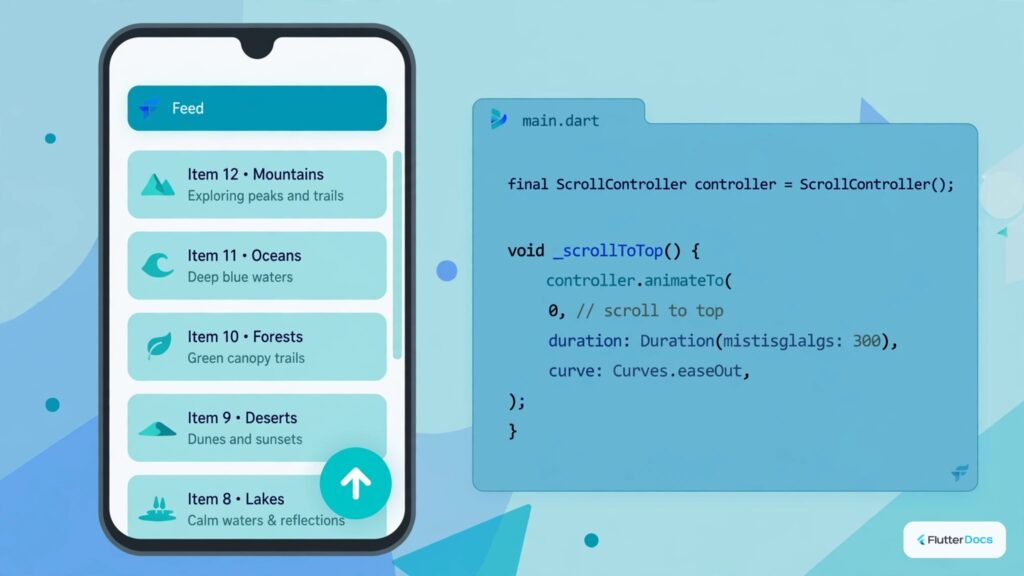
In this example, we are going to show you the way to add the “Scroll back to top” button with fade in/fade out animation during the show or hide. You can use this Flutter app example in your project. See the code below:
The output of this example:

Flutter App Example with “Scroll Back to Top” Button:
import 'package:flutter/material.dart';

void main() {
  runApp(MyApp());
}

class MyApp extends StatelessWidget{
  @override
  Widget build(BuildContext context) {
     return MaterialApp(
         home: Home()
      );
  }
}

class Home extends  StatefulWidget {
  @override
  State<Home> createState() => _HomeState();
}

class _HomeState extends State<Home> {
  ScrollController scrollController = ScrollController();
  bool showbtn = false;

  List<String> countries = ["USA", "United Kingdom", "China", "Russia", "Brazil",
                              "India", "Pakistan", "Nepal", "Bangladesh", "Sri Lanka",
                              "Japan", "South Korea", "Mongolia"];

  @override
  void initState() {
    scrollController.addListener(() { //scroll listener
        double showoffset = 10.0; //Back to top botton will show on scroll offset 10.0

        if(scrollController.offset > showoffset){
              showbtn = true;
              setState(() {
                //update state
              });
        }else{
             showbtn = false;
              setState(() {
                //update state
              });
        }
    });
    super.initState();
  }

  @override
  Widget build(BuildContext context) {
    return Scaffold(
         appBar: AppBar(
            title: Text("Scroll Back to Top Button"),
            backgroundColor: Colors.redAccent
         ),
         floatingActionButton: AnimatedOpacity(
           duration: Duration(milliseconds: 1000),  //show/hide animation
           opacity: showbtn?1.0:0.0, //set obacity to 1 on visible, or hide
           child: FloatingActionButton(
              onPressed: () {
                 scrollController.animateTo( //go to top of scroll
                   0,  //scroll offset to go
                   duration: Duration(milliseconds: 500), //duration of scroll
                   curve:Curves.fastOutSlowIn //scroll type
                  );
              },
              child: Icon(Icons.arrow_upward),
              backgroundColor: Colors.redAccent,
           ),
         ),
         body: SingleChildScrollView(
                  controller: scrollController, //set controller
                  child:Container(
                    child:Column(
                      children: countries.map((country){
                          return Card(
                            child:ListTile(
                                title: Text(country)
                            )
                          );
                      }).toList(),
                  )
              )
          )
    );
  }
}
You can also use ListView() widget. In this example, We have added the scroll change listener and got Scroll position offset, and used it to make the “Scroll Back to Top” button. You can add Scroll bar on SingleChildScrollView widget in this example.
Output is shown above. This is the way you can add the “Scroll Back to Top” button in Flutter App. For managing long content views, explore scrollable ListView navigation and implementing FloatingActionButton widgets in Flutter.
Updated Flutter Example
ScrollController & Animated Floating Action Button Architecture
Key Implementation Details & Modern Differences:
- Animated Visibility Transitions: Uses
AnimatedScaleto gracefully scale the floating action button in and out based on scroll offset thresholds without abrupt UI popping. - Smooth Physics Animation: Calls
ScrollController.animateTo(0, duration: ..., curve: Curves.easeInOut)to provide fluid, high-frame-rate scrolling rather than instant jumps. - Safe Lifecycle Disposal: Removes the scroll listener and disposes
ScrollControllerindispose()to prevent native platform resource leaks.
import 'package:flutter/material.dart';

void main() {
  runApp(const MaterialApp(home: ModernScrollToTopDemo()));
}

class ModernScrollToTopDemo extends StatefulWidget {
  const ModernScrollToTopDemo({super.key});

  @override
  State<ModernScrollToTopDemo> createState() => _ModernScrollToTopDemoState();
}

class _ModernScrollToTopDemoState extends State<ModernScrollToTopDemo> {
  final ScrollController _scrollController = ScrollController();
  bool _showBackToTop = false;

  @override
  void initState() {
    super.initState();
    _scrollController.addListener(_handleScroll);
  }

  void _handleScroll() {
    if (_scrollController.offset >= 300 && !_showBackToTop) {
      setState(() => _showBackToTop = true);
    } else if (_scrollController.offset < 300 && _showBackToTop) {
      setState(() => _showBackToTop = false);
    }
  }

  void _scrollToTop() {
    _scrollController.animateTo(
      0,
      duration: const Duration(milliseconds: 400),
      curve: Curves.easeInOut,
    );
  }

  @override
  void dispose() {
    _scrollController.removeListener(_handleScroll);
    _scrollController.dispose();
    super.dispose();
  }

  @override
  Widget build(BuildContext context) {
    return Scaffold(
      appBar: AppBar(title: const Text('Scroll Back to Top Architecture')),
      body: ListView.builder(
        controller: _scrollController,
        itemCount: 50,
        itemBuilder: (context, index) {
          return ListTile(
            leading: CircleAvatar(child: Text('${index + 1}')),
            title: Text('Feed Element Item #$index'),
            subtitle: const Text('Material 3 Dynamic List Scrolling'),
          );
        },
      ),
      floatingActionButton: AnimatedScale(
        scale: _showBackToTop ? 1.0 : 0.0,
        duration: const Duration(milliseconds: 200),
        child: FloatingActionButton.small(
          onPressed: _showBackToTop ? _scrollToTop : null,
          tooltip: 'Scroll to Top',
          child: const Icon(Icons.arrow_upward),
        ),
      ),
    );
  }
}
Document History & Archival Record
Original reference snapshot archived June 3, 2023. Updated working solution verified on modern Flutter & Dart SDKs.