
How to Add ʺ⋮ʺ Popup Menu on Flutter AppBar
Verified Solution
Tested on Flutter 3.47.7 • Dart 3.13.5
Jump to Updated Flutter Example ↓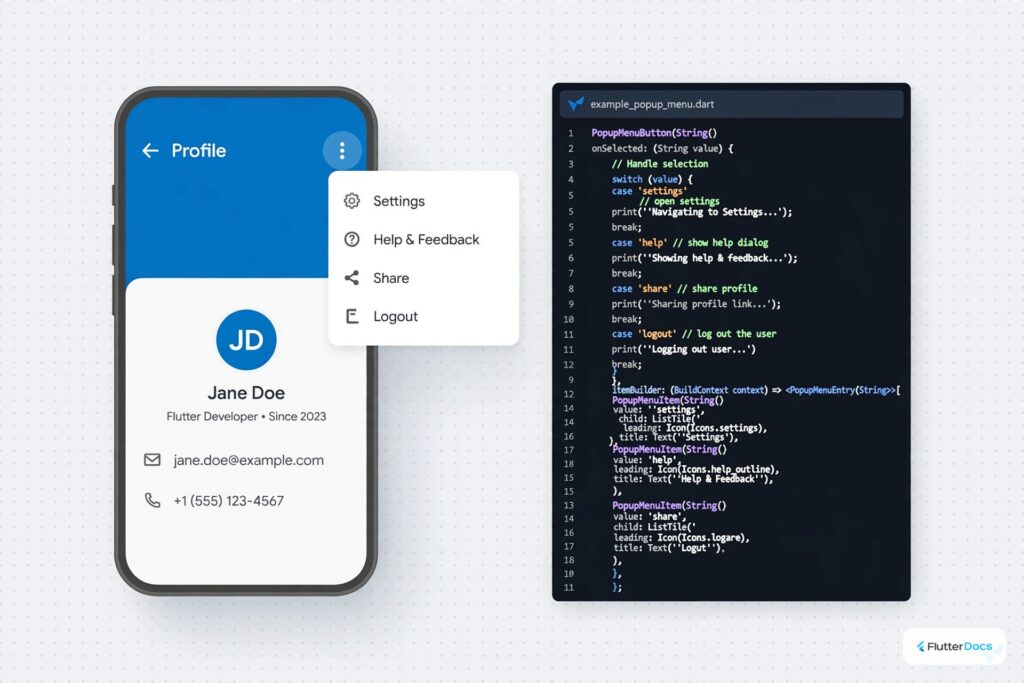
In this example, we are going to show you how to add a 3 dot popup or dropdown menu on AppBar of Flutter App. We have added PopupMenuButton to add a popup menu on AppBar. See the example below:
AppBar(
  title: Text("Popup Menu on AppBar"),
  backgroundColor: Colors.redAccent,
  actions: [

        PopupMenuButton(
          // add icon, by default "3 dot" icon
          // icon: Icon(Icons.book)
          itemBuilder: (context){
            return [
                  PopupMenuItem<int>(
                      value: 0,
                      child: Text("My Account"),
                  ),

                  PopupMenuItem<int>(
                      value: 1,
                      child: Text("Settings"),
                  ),

                  PopupMenuItem<int>(
                      value: 2,
                      child: Text("Logout"),
                  ),
              ];
          },
          onSelected:(value){
            if(value == 0){
                print("My account menu is selected.");
            }else if(value == 1){
                print("Settings menu is selected.");
            }else if(value == 2){
                print("Logout menu is selected.");
            }
          }
        ),

  ],
)
Output on AppBar

Full Flutter App Example:
import 'package:flutter/material.dart';

void main() {
  runApp(MyApp());
}

class MyApp extends StatelessWidget{
  @override
  Widget build(BuildContext context) {
     return MaterialApp(
         home: Home()
      );
  }
}

class Home extends  StatefulWidget {
  @override
  State<Home> createState() => _HomeState();
}

class _HomeState extends State<Home> {
  @override
  Widget build(BuildContext context) {
    return Scaffold(
         appBar: AppBar(
            title: Text("Popup Menu on AppBar"),
            backgroundColor: Colors.redAccent,
            actions: [

                 PopupMenuButton(
                   // add icon, by default "3 dot" icon
                   // icon: Icon(Icons.book)
                   itemBuilder: (context){
                     return [
                            PopupMenuItem<int>(
                                value: 0,
                                child: Text("My Account"),
                            ),

                            PopupMenuItem<int>(
                                value: 1,
                                child: Text("Settings"),
                            ),

                            PopupMenuItem<int>(
                                value: 2,
                                child: Text("Logout"),
                            ),
                        ];
                   },
                   onSelected:(value){
                      if(value == 0){
                         print("My account menu is selected.");
                      }else if(value == 1){
                         print("Settings menu is selected.");
                      }else if(value == 2){
                         print("Logout menu is selected.");
                      }
                   }
                  ),


            ],
         ),

         body: Container(

        )
    );
  }
}
Popup Menu Output:

In this way, you can add a Dropdown popup menu on AppBar in Flutter App. For comprehensive navigation bar configurations, see how to combine app bars with adding navigation drawers below app bars and styling DropdownButton menus.
Updated Flutter Example
Updated Flutter Example
Material 3 PopupMenuButton & Strongly-Typed Enums
Key Implementation Details & Modern Differences:
- Type-Safe Enum Actions: Replaces fragile string-based popup selections with strongly typed Dart enums, eliminating typographical runtime bugs.
- Material 3 Visual Styling: Incorporates
PopupMenuEntryitems with leading icons, dividers (PopupMenuDivider), and theme-aware surface tinting. - Scaffold Messenger Feedback: Dispatches clean SnackBar user feedback via
ScaffoldMessenger.of(context)upon menu item selection.
Updated Flutter Example Code
import 'package:flutter/material.dart';

void main() {
  runApp(const MaterialApp(home: ModernPopupMenuDemo()));
}

enum AppMenuAction { profile, notifications, settings, logout }

class ModernPopupMenuDemo extends StatefulWidget {
  const ModernPopupMenuDemo({super.key});

  @override
  State<ModernPopupMenuDemo> createState() => _ModernPopupMenuDemoState();
}

class _ModernPopupMenuDemoState extends State<ModernPopupMenuDemo> {
  String _selectedAction = 'No action selected';

  @override
  Widget build(BuildContext context) {
    return Scaffold(
      appBar: AppBar(
        title: const Text('Material 3 PopupMenu'),
        actions: [
          PopupMenuButton<AppMenuAction>(
            tooltip: 'Show Menu',
            onSelected: (AppMenuAction action) {
              setState(() => _selectedAction = action.name.toUpperCase());
            },
            itemBuilder: (BuildContext context) => [
              const PopupMenuItem(
                value: AppMenuAction.profile,
                child: ListTile(
                  leading: Icon(Icons.person),
                  title: Text('Profile'),
                ),
              ),
              const PopupMenuItem(
                value: AppMenuAction.notifications,
                child: ListTile(
                  leading: Icon(Icons.notifications),
                  title: Text('Notifications'),
                ),
              ),
              const PopupMenuDivider(),
              const PopupMenuItem(
                value: AppMenuAction.settings,
                child: ListTile(
                  leading: Icon(Icons.settings),
                  title: Text('Settings'),
                ),
              ),
            ],
          ),
        ],
      ),
      body: Center(
        child: Text(
          'Last Action: $_selectedAction',
          key: const Key('action-indicator'),
          style: Theme.of(context).textTheme.headlineSmall,
        ),
      ),
    );
  }
}
Document History & Archival Record
Original reference snapshot archived April 1, 2023. Updated working solution verified on modern Flutter & Dart SDKs.