
Flutter – How to Add Drawer Below App Bar and Set Menu Icon
Verified Solution
Tested on Flutter 3.47.7 • Dart 3.13.5
Jump to Updated Flutter Example ↓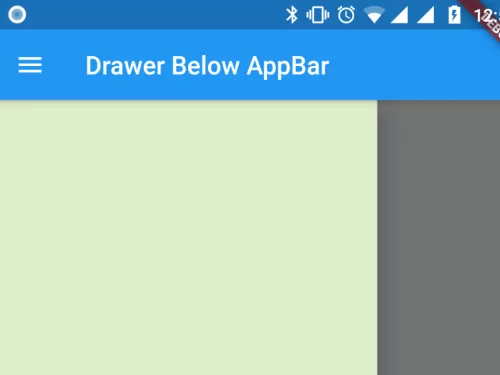
When you add drawer navigation to Scaffold, it always shows above the app bar and there is no configuration to set it below. But with a simple trick, you can set drawer layout below the app bar like below.

Get the example below in your code, and set navigation drawer below the app bar along with its menu icon. To achieve this feature, we have used two Scaffold in one layout.
import 'package:flutter/material.dart';
import 'package:flutter/widgets.dart';

class MyDrawer extends StatelessWidget{
  final GlobalKey<ScaffoldState> _drawerscaffoldkey = new GlobalKey<ScaffoldState>();
  //Here we will use two Scaffold, therefore we set golbal key to
  //scaffold where we will set drawer.
  //It is used to open or close drawer.s

  @override
  Widget build(BuildContext context) {
    return Scaffold( //first scaffold


        appBar: AppBar(
           title: Text("Drawer Below AppBar"),
           leading: IconButton(
              onPressed: (){
                //on drawer menu pressed
                  if(_drawerscaffoldkey.currentState.isDrawerOpen){
                      //if drawer is open, then close the drawer
                      Navigator.pop(context);
                  }else{
                      _drawerscaffoldkey.currentState.openDrawer();
                      //if drawer is closed then open the drawer.
                  }
              },
              icon: Icon(Icons.menu),
          ), // Set menu icon at leading of AppBar
        ),


        body:Scaffold(
             //second scaffold
             key:_drawerscaffoldkey, //set gobal key defined above
             drawer: Drawer(
                 child: SingleChildScrollView(
                     // Drawer content here
                     // design your own drawer menu here.
                     child:Container(
                         color:Colors.lightGreen[100],
                         height: MediaQuery.of(context).size.height,
                         width:double.infinity,
                     )
                 )
             ),
             body: SingleChildScrollView(
                 child: Container(
                    // your main content
                 )
             )
        )


    );
  }
}
Copy code to your project, if you get any confusing things then comment below, I will sort out for you. To complement navigation drawers with header menus, see popup menu items on Flutter AppBar and integrating notched floating action buttons.
Updated Flutter Example
Updated Flutter Example
Material 3 NavigationDrawer & Destination Architecture
Key Implementation Details & Modern Differences:
- Material 3 NavigationDrawer Architecture: Adopts the modern
NavigationDrawerandNavigationDrawerDestinationcomponents, replacing legacyDrawerand manualListView/ListTileboilerplate. - Builder Context Scoping: Uses a
Builderwidget to obtain a descendantBuildContextforScaffold.of(context).openDrawer(), preventing the common 'Scaffold.of() called with a context that does not contain a Scaffold' runtime error. - Theme-Aware Color Schemes: Automatically harmonizes container elevation, surface tints, and active destination states with Material 3
ColorScheme.
Updated Flutter Example Code
import 'package:flutter/material.dart';

void main() {
  runApp(const MaterialApp(home: ModernNavigationDrawerDemo()));
}

class ModernNavigationDrawerDemo extends StatefulWidget {
  const ModernNavigationDrawerDemo({super.key});

  @override
  State<ModernNavigationDrawerDemo> createState() =>
      _ModernNavigationDrawerDemoState();
}

class _ModernNavigationDrawerDemoState
    extends State<ModernNavigationDrawerDemo> {
  int _selectedDrawerIndex = 0;

  static const List<String> _destinations = [
    'Dashboard',
    'Flutter Guides',
    'API References',
    'Settings',
  ];

  @override
  Widget build(BuildContext context) {
    return Scaffold(
      appBar: AppBar(
        title: const Text('Material 3 NavigationDrawer'),
        leading: Builder(
          builder: (context) {
            return IconButton(
              icon: const Icon(Icons.menu),
              tooltip: 'Open Navigation Drawer',
              onPressed: () => Scaffold.of(context).openDrawer(),
            );
          },
        ),
      ),
      drawer: NavigationDrawer(
        selectedIndex: _selectedDrawerIndex,
        onDestinationSelected: (int index) {
          setState(() => _selectedDrawerIndex = index);
          Navigator.of(context).pop(); // Close drawer after selection
        },
        children: [
          Padding(
            padding: const EdgeInsets.fromLTRB(28, 16, 16, 10),
            child: Text(
              'Documentation Hub',
              style: Theme.of(context).textTheme.titleSmall,
            ),
          ),
          const NavigationDrawerDestination(
            icon: Icon(Icons.dashboard_outlined),
            selectedIcon: Icon(Icons.dashboard),
            label: Text('Dashboard'),
          ),
          const NavigationDrawerDestination(
            icon: Icon(Icons.menu_book_outlined),
            selectedIcon: Icon(Icons.menu_book),
            label: Text('Flutter Guides'),
          ),
          const NavigationDrawerDestination(
            icon: Icon(Icons.code_outlined),
            selectedIcon: Icon(Icons.code),
            label: Text('API References'),
          ),
          const Divider(),
          const NavigationDrawerDestination(
            icon: Icon(Icons.settings_outlined),
            selectedIcon: Icon(Icons.settings),
            label: Text('Settings'),
          ),
        ],
      ),
      body: Center(
        child: Column(
          mainAxisAlignment: MainAxisAlignment.center,
          children: [
            const Icon(Icons.folder_open, size: 48, color: Colors.blueAccent),
            const SizedBox(height: 12),
            Text(
              'Active Section: ${_destinations[_selectedDrawerIndex]}',
              key: const Key('active-section'),
              style: Theme.of(context).textTheme.headlineSmall,
            ),
          ],
        ),
      ),
    );
  }
}
Document History & Archival Record
Original reference snapshot archived February 2, 2023. Updated working solution verified on modern Flutter & Dart SDKs.