
How to Get Scroll Position Offset in Flutter
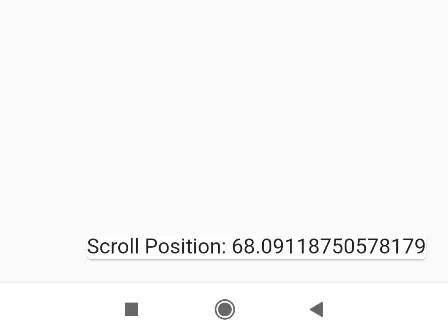
In this example, we are going to show you how to get or listen to a Scroll position change and its current position offset on Scrolling widgets like SingleChildScrollView(), ListView(). See the example below:
How to Get Current Scroll Position Offset:
ScrollController scrollController = ScrollController();Set this controller to SingleChildScrollView() or ListView():
SingleChildScrollView(
    controller: scrollController
)
ListView(
controller: scrollController
)You can show show Scrollbar on SingleChildScrollView and ListView as well.
Get Current Scroll Position Offset:
print(scrollController.offset);
//.offset is double value
/* Outputs --------
    I/flutter (26854): 32.349831321022975
    I/flutter (26854): 33.07679332386385
    I/flutter (26854): 33.80375532670473
    I/flutter (26854): 34.530717329545666
    I/flutter (26854): 35.2576793323866
    I/flutter (26854): 35.62113813920479
    I/flutter (26854): 35.984641335227536
    I/flutter (26854): 36.34810014204572
    I/flutter (26854): 36.71160333806847
    I/flutter (26854): 37.07506214488666
    I/flutter (26854): 37.80202414772759
    I/flutter (26854): 38.16552734375034
*/
How to Add Scroll Position Change Listener:
ScrollController scrollController = ScrollController();scrollController.addListener(() { //listener
print(scrollController.offset);
//.offset is double value
/* Outputs --------
I/flutter (26854): 35.984641335227536
I/flutter (26854): 36.34810014204572
I/flutter (26854): 36.71160333806847
I/flutter (26854): 37.07506214488666
I/flutter (26854): 37.80202414772759
I/flutter (26854): 38.16552734375034
*/
});Flutter App Example:
import 'package:flutter/material.dart';

void main() {
  runApp(MyApp());
}

class MyApp extends StatelessWidget{
  @override
  Widget build(BuildContext context) {
     return MaterialApp(
         home: Home()
      );
  }
}

class Home extends  StatefulWidget {
  @override
  State<Home> createState() => _HomeState();
}

class _HomeState extends State<Home> {
  ScrollController scrollController = ScrollController();
  bool showbtn = false;

  @override
  void initState() {
    scrollController.addListener(() { //listener
      showbtn = true;
      print(scrollController.offset);
      //.offset is double value
      /* Outputs --------
          I/flutter (26854): 32.349831321022975
          I/flutter (26854): 33.07679332386385
          I/flutter (26854): 33.80375532670473
          I/flutter (26854): 34.530717329545666
          I/flutter (26854): 35.2576793323866
          I/flutter (26854): 35.62113813920479
          I/flutter (26854): 35.984641335227536
          I/flutter (26854): 36.34810014204572
          I/flutter (26854): 36.71160333806847
          I/flutter (26854): 37.07506214488666
          I/flutter (26854): 37.80202414772759
          I/flutter (26854): 38.16552734375034
      */

      setState(() {
         //update state
      });
    });
    super.initState();
  }

  @override
  Widget build(BuildContext context) {
    return Scaffold(
         appBar: AppBar(
            title: Text("Get Scroll Position in Flutter"),
            backgroundColor: Colors.redAccent
         ),
         floatingActionButton: Card(
            child: showbtn?
                   Text("Scroll Position: " + scrollController.offset.toString(),
                        style: TextStyle(fontSize: 20),)
                   :Text("")
         ),
         body: SingleChildScrollView(
                  controller: scrollController,
                  child:Container(
                    height: 1000,
                    width: 500,

              )
          )
    );
  }
}
Output Screen:

In this way, you can fetch the current scroll position of SingleChildScrollView() or ListView() or set Scroll Position change Listener in Flutter App. For related position detection and offset measurement, explore getting X and Y coordinates of widgets and triggering scroll back to top buttons.
Updated Flutter Example
Scroll Position Tracking with ScrollController & NotificationListener
Key Implementation Details & Modern Differences:
- Dual Tracking Strategy: Combines
ScrollControllerlistener for active imperative control withNotificationListenerfor bubble-free passive tracking. - Lifecycle Cleanliness: Properly registers and disposes controller listeners to avoid memory leaks during widget unmounting.
- Directional & Boundary Metrics: Inspects
ScrollMetricsincluding pixels, maxScrollExtent, and atEdge status for real-time UI reactions.
import 'package:flutter/material.dart';

void main() {
  runApp(const MaterialApp(home: ModernScrollPositionDemo()));
}

class ModernScrollPositionDemo extends StatefulWidget {
  const ModernScrollPositionDemo({super.key});

  @override
  State<ModernScrollPositionDemo> createState() =>
      _ModernScrollPositionDemoState();
}

class _ModernScrollPositionDemoState extends State<ModernScrollPositionDemo> {
  final ScrollController _scrollController = ScrollController();
  double _currentOffset = 0.0;
  bool _isAtBottom = false;

  @override
  void initState() {
    super.initState();
    _scrollController.addListener(_onScroll);
  }

  void _onScroll() {
    if (!_scrollController.hasClients) return;
    final max = _scrollController.position.maxScrollExtent;
    final current = _scrollController.offset;
    setState(() {
      _currentOffset = current;
      _isAtBottom = current >= max - 20.0;
    });
  }

  @override
  void dispose() {
    _scrollController.removeListener(_onScroll);
    _scrollController.dispose();
    super.dispose();
  }

  @override
  Widget build(BuildContext context) {
    final theme = Theme.of(context);

    return Scaffold(
      appBar: AppBar(title: const Text('Scroll Position Tracking')),
      body: Column(
        children: [
          Container(
            padding: const EdgeInsets.symmetric(horizontal: 20, vertical: 12),
            color: theme.colorScheme.surfaceContainerHighest,
            child: Row(
              mainAxisAlignment: MainAxisAlignment.spaceBetween,
              children: [
                Text(
                  'Offset: ${_currentOffset.toStringAsFixed(1)}px',
                  key: const Key('scroll-offset-text'),
                  style: const TextStyle(fontWeight: FontWeight.bold),
                ),
                Text(
                  _isAtBottom ? 'Reached Bottom!' : 'Scrolling...',
                  style: TextStyle(
                    color: _isAtBottom ? Colors.green[800] : Colors.blueGrey,
                    fontWeight: FontWeight.bold,
                  ),
                ),
              ],
            ),
          ),
          Expanded(
            child: ListView.builder(
              controller: _scrollController,
              itemCount: 40,
              itemBuilder: (context, index) {
                return ListTile(
                  leading: CircleAvatar(child: Text('$index')),
                  title: Text('Scrollable Item #$index'),
                  subtitle: Text('Distance unit ${(index * 60)}px'),
                );
              },
            ),
          ),
        ],
      ),
      floatingActionButton: _currentOffset > 200
          ? FloatingActionButton.small(
              onPressed: () {
                _scrollController.animateTo(
                  0.0,
                  duration: const Duration(milliseconds: 300),
                  curve: Curves.easeOut,
                );
              },
              child: const Icon(Icons.arrow_upward),
            )
          : null,
    );
  }
}
Document History & Archival Record
Original reference snapshot archived January 4, 2023. Updated working solution verified on modern Flutter & Dart SDKs.