
How to Position Widget in Stack Layout in Flutter
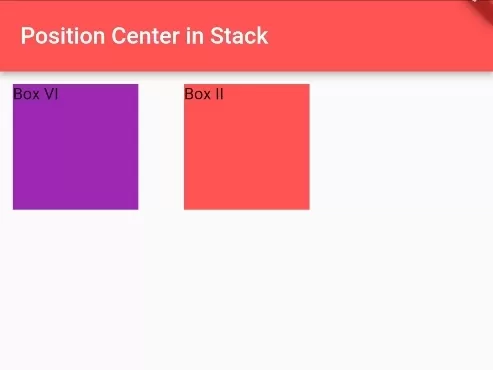
In this example, we are going to show you how to align or position widget in stack layout. You will learn to align at top, left, right, bottom, center, topCenter, bottomCenter, centerLeft, centerRight, or anywhere inside Stack in Flutter. See the example below:
See this also:\u00a0How to Fix Widget at Top/Bottom in Flutter
How to Position Widget in Stack:
Stack(
  children: [

     //manual position using left, top, right, bottom
      Positioned(
        left:0,
        top:0,
        //you can use "right" and "bottom" too
        child:Container(
          height:100,
          width:100,
          color: Colors.purple,
          child: Text("Box VI"),
        )
      ),
  ]
)
How to Position Widget at Center of Stack:
Stack(
  alignment: Alignment.center,
  children: [
  ]
)
OR
Stack(
  children: [

     //Alignment at Center
      Container(
        alignment: Alignment.center,
        child:Container(
          height:100,
          width:100,
          color: Colors.blueAccent,
          child: Text("Box III"),
        )
      ),

  ]
)
You can use Container() widget or Align() widget for alignment purpose.
How to Position Widget at Top Center in Stack:
Stack(
  children: [

      //align to top center using Container();
      Container(
        alignment: Alignment.topCenter,
        child:Container(
          height:100,
          width:100,
          color: Colors.redAccent,
          child: Text("Box II"),
        )
      ),

  ]
)
How to Position Widget at Bottom Center in Stack:
Stack(
  children: [

      //align at bottom center using Align()
      Align(
        alignment: Alignment.bottomCenter,
        child:Container(
          height:100,
          width:100,
          color: Colors.greenAccent,
          child: Text("Box I"),
        )
      ),

  ]
)
How to Position Widget at Center-Left in Stack:
Stack(
  children: [

      //alignment at veritically center, and at left horizontally
      Align(
        alignment: Alignment.centerLeft,
        child:Container(
          height:100,
          width:100,
          color: Colors.orangeAccent,
          child: Text("Box IV"),
        )
      ),

  ]
)
How to Position Widget at Center Right in Stack:
Stack(
  children: [

      //alignment at veritically center, and at right horizontally
      Align(
        alignment: Alignment.centerRight,
        child:Container(
          height:100,
          width:100,
          color: Colors.greenAccent,
          child: Text("Box V"),
        )
      ),

  ]
)
Full Dart/Flutter Code Example:
import 'package:flutter/material.dart';

void main() {
  runApp(MyApp());
}

class MyApp extends StatelessWidget{
  @override
  Widget build(BuildContext context) {
     return MaterialApp(
         home: Home()
      );
  }
}

class Home extends  StatefulWidget {
  @override
  State<Home> createState() => _HomeState();
}

class _HomeState extends State<Home> {
  @override
  Widget build(BuildContext context) {
    return Scaffold(
         appBar: AppBar(
            title: Text("Position Widget in Stack"),
            backgroundColor: Colors.redAccent
         ),
          body: Container(
            padding: EdgeInsets.all(10),
             child:
              Stack(
                children: [

                    //align at bottom center using Align()
                    Align(
                      alignment: Alignment.bottomCenter,
                      child:Container(
                        height:100,
                        width:100,
                        color: Colors.greenAccent,
                        child: Text("Box I"),
                      )
                    ),

                    //align to top center using Container();
                    Container(
                      alignment: Alignment.topCenter,
                      child:Container(
                        height:100,
                        width:100,
                        color: Colors.redAccent,
                        child: Text("Box II"),
                      )
                    ),

                  //Alignment at Center
                    Container(
                      alignment: Alignment.center,
                      child:Container(
                        height:100,
                        width:100,
                        color: Colors.blueAccent,
                        child: Text("Box III"),
                      )
                    ),

                    //alignment at veritically center, and at left horizontally
                    Align(
                      alignment: Alignment.centerLeft,
                      child:Container(
                        height:100,
                        width:100,
                        color: Colors.orangeAccent,
                        child: Text("Box IV"),
                      )
                    ),

                    //alignment at veritically center, and at right horizontally
                    Align(
                      alignment: Alignment.centerRight,
                      child:Container(
                        height:100,
                        width:100,
                        color: Colors.greenAccent,
                        child: Text("Box V"),
                      )
                    ),

                  //manual position with left, top, right, bottom
                    Positioned(
                      left:0,
                      top:0,
                      //you can use "right" and "bottom" too
                      child:Container(
                        height:100,
                        width:100,
                        color: Colors.purple,
                        child: Text("Box VI"),
                      )
                    ),
                ]
              )
          )
    );
  }
}
You can furthermore use the same method to position widget at left, right, top, bottom, or anywhere you want.
Output Screenshot:
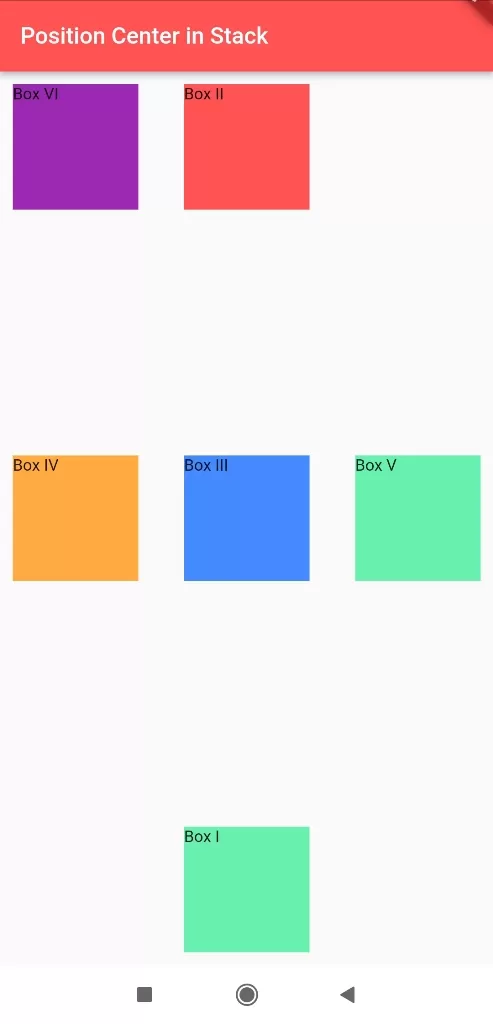
In this way, you can position the widget inside stack layout at the center, topCenter, bottomCenter, top, bottom, left, right, centerLeft, centerRight in Flutter app. To prevent overflow errors when layering complex children, review solving unbounded viewport constraints and measuring device screen dimensions and layout constraints.
Updated Flutter Example
Stack & Positioned.directional Layout Architecture
Key Implementation Details & Modern Differences:
- Internationalization-Ready Directionality: Uses
Positioned.directional()withstartandendbounds, automatically mirroring layout positioning in Right-to-Left (RTL) locales. - Overflow Clip Control: Configures
clipBehavior: Clip.noneto allow floating badges to render smoothly outside container boundaries. - Material 3 Card Foundation: Combines directional overlays with modern
Card.filledand tonal action buttons.
import 'package:flutter/material.dart';

void main() {
  runApp(const MaterialApp(home: ModernStackPositionedDemo()));
}

class ModernStackPositionedDemo extends StatelessWidget {
  const ModernStackPositionedDemo({super.key});

  @override
  Widget build(BuildContext context) {
    final theme = Theme.of(context);

    return Scaffold(
      appBar: AppBar(title: const Text('Stack & Positioned.directional')),
      body: Center(
        child: SizedBox(
          width: 320,
          height: 240,
          child: Stack(
            clipBehavior: Clip.none,
            children: [
              // Base Card
              Card.filled(
                child: Padding(
                  padding: const EdgeInsets.symmetric(
                    horizontal: 20.0,
                    vertical: 16.0,
                  ),
                  child: Column(
                    mainAxisAlignment: MainAxisAlignment.center,
                    crossAxisAlignment: CrossAxisAlignment.start,
                    children: [
                      Text(
                        'Material 3 Feature Card',
                        style: theme.textTheme.titleMedium,
                      ),
                      const SizedBox(height: 8),
                      const Text(
                        'Using Positioned.directional ensures automatic layout adaptation in both LTR and RTL locales.',
                      ),
                    ],
                  ),
                ),
              ),
              // Directional Floating Badge (Top-End)
              Positioned.directional(
                textDirection: Directionality.of(context),
                top: -10,
                end: -10,
                child: Container(
                  padding: const EdgeInsets.symmetric(
                    horizontal: 10,
                    vertical: 4,
                  ),
                  decoration: BoxDecoration(
                    color: theme.colorScheme.primary,
                    borderRadius: BorderRadius.circular(12),
                    boxShadow: const [
                      BoxShadow(
                        color: Colors.black26,
                        blurRadius: 4,
                        offset: Offset(0, 2),
                      ),
                    ],
                  ),
                  child: Text(
                    'NEW',
                    style: TextStyle(
                      color: theme.colorScheme.onPrimary,
                      fontWeight: FontWeight.bold,
                      fontSize: 12,
                    ),
                  ),
                ),
              ),
              // Bottom Action Button
              Positioned.directional(
                textDirection: Directionality.of(context),
                bottom: 12,
                end: 12,
                child: FilledButton.tonalIcon(
                  onPressed: () {},
                  icon: const Icon(Icons.arrow_forward, size: 16),
                  label: const Text('Explore'),
                ),
              ),
            ],
          ),
        ),
      ),
    );
  }
}
Document History & Archival Record
Original reference snapshot archived January 4, 2023. Updated working solution verified on modern Flutter & Dart SDKs.