
How to Add Autocomplete Suggestions on TextField in Flutter
Verified Solution
Tested on Flutter 3.47.7 • Dart 3.13.5
Jump to Updated Flutter Example ↓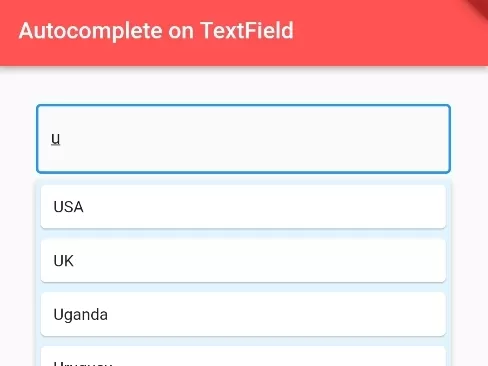
In this example, we are going to show you how to add autocomplete suggestions feature on TextField Input in Flutter. It is not exactly a TextField, but using a package, we can have a similar input field with autocomplete suggestions.
Method 1: RawAutocomplete() Widget
List<String> suggestons = ["USA", "UK", "Uganda", "Uruguay", "United Arab Emirates"];RawAutocomplete(
optionsBuilder: (TextEditingValue textEditingValue) {
if (textEditingValue.text == '') {
return const Iterable<String>.empty();
}else{
List<String> matches = <String>[];
matches.addAll(suggestons);
matches.retainWhere((s){
return s.toLowerCase().contains(textEditingValue.text.toLowerCase());
});
return matches;
}
},
onSelected: (String selection) {
print('You just selected $selection');
},
fieldViewBuilder: (BuildContext context, TextEditingController textEditingController,
FocusNode focusNode,
VoidCallback onFieldSubmitted) {
return TextField(
decoration: InputDecoration(
border: OutlineInputBorder()
),
controller: textEditingController,
focusNode: focusNode,
onSubmitted: (String value) {
},
);
},
optionsViewBuilder: (BuildContext context, void Function(String) onSelected,
Iterable<String> options) {
return Material(
child:SizedBox(
height: 200,
child:SingleChildScrollView(
child: Column(
children: options.map((opt){
return InkWell(
onTap: (){
onSelected(opt);
},
child:Container(
padding: EdgeInsets.only(right:60),
child:Card(
child: Container(
width: double.infinity,
padding: EdgeInsets.all(10),
child:Text(opt),
)
)
)
);
}).toList(),
)
)
)
);
},
)Output:
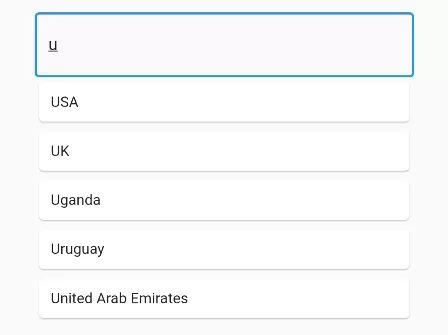
Method 2: Autocomplete() Widget (Without Package but few Configuration):
List<String> suggestons = ["USA", "UK", "Uganda", "Uruguay", "United Arab Emirates"];Autocomplete(
optionsBuilder: (TextEditingValue textEditingValue) {
if (textEditingValue.text == '') {
return const Iterable<String>.empty();
}else{
List<String> matches = <String>[];
matches.addAll(suggestons);
matches.retainWhere((s){
return s.toLowerCase().contains(textEditingValue.text.toLowerCase());
});
return matches;
}
},
onSelected: (String selection) {
print('You just selected $selection');
},
)Output:
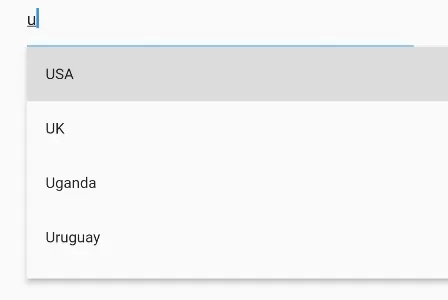
Method 3: (Using Package):
You need to add flutter_typeahead Flutter package in your project by adding the following lines in pubspect.yaml file:
dependencies:
  flutter:
    sdk: flutter
  flutter_typeahead: ^3.2.3
Autocomplete Suggestions on TextField with TypeAheadField()
import 'package:flutter_typeahead/flutter_typeahead.dart'; List<String> suggestons = ["USA", "UK", "Uganda", "Uruguay", "United Arab Emirates"];TypeAheadField(
animationStart: 0,
animationDuration: Duration.zero,
textFieldConfiguration: TextFieldConfiguration(
autofocus: true,
style: TextStyle(fontSize: 15),
decoration: InputDecoration(
border: OutlineInputBorder()
)
),
suggestionsBoxDecoration: SuggestionsBoxDecoration(
color: Colors.lightBlue[50]
),
suggestionsCallback: (pattern){
List<String> matches = <String>[];
matches.addAll(suggestons);
matches.retainWhere((s){
return s.toLowerCase().contains(pattern.toLowerCase());
});
return matches;
},
itemBuilder: (context, sone) {
return Card(
child: Container(
padding: EdgeInsets.all(10),
child:Text(sone.toString()),
)
);
},
onSuggestionSelected: (suggestion) {
print(suggestion);
},
)Full Dart/Flutter code example:
import 'package:flutter/material.dart';
import 'package:flutter_typeahead/flutter_typeahead.dart';
void main() {
runApp(MyApp());
}
class MyApp extends StatelessWidget{
@override
Widget build(BuildContext context) {
return MaterialApp(
home: Home()
);
}
}
class Home extends StatefulWidget {
@override
State<Home> createState() => _HomeState();
}
class _HomeState extends State<Home> {
List<String> suggestons = ["USA", "UK", "Uganda", "Uruguay", "United Arab Emirates"];
@override
Widget build(BuildContext context) {
return Scaffold(
appBar: AppBar(
title: Text("Autocomplete on TextField"),
backgroundColor: Colors.redAccent
),
body: Container(
margin: EdgeInsets.all(30),
alignment: Alignment.topCenter,
child: Column(
children: [
TypeAheadField(
    animationStart: 0,
    animationDuration: Duration.zero,
    textFieldConfiguration: TextFieldConfiguration(
      autofocus: true,
      style: TextStyle(fontSize: 15),
      decoration: InputDecoration(
        border: OutlineInputBorder()
      )
    ),
    suggestionsBoxDecoration: SuggestionsBoxDecoration(
        color: Colors.lightBlue[50]
    ),
    suggestionsCallback: (pattern){
        List<String> matches = <String>[];
        matches.addAll(suggestons);

        matches.retainWhere((s){
          return s.toLowerCase().contains(pattern.toLowerCase());
        });
        return matches;
    },
    itemBuilder: (context, sone) {
      return Card(
          child: Container(
            padding: EdgeInsets.all(10),
            child:Text(sone.toString()),
          )
      );
    },
    onSuggestionSelected: (suggestion) {
        print(suggestion);
    },
)
],
),
)
);
}
}Output Screenshot:
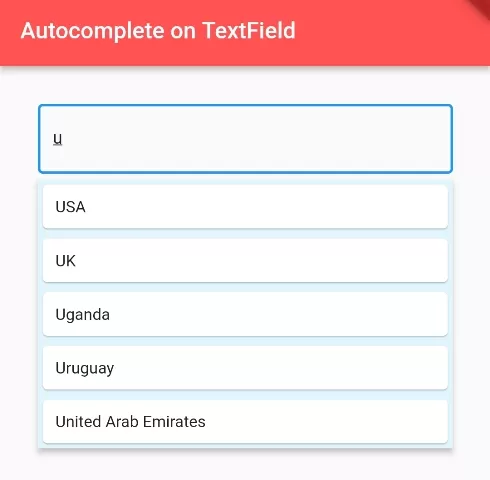
In this way, you can add Autocomplete Suggestion on TextField input in Flutter App. To process matching search queries against data sources, explore filtering list arrays for suggestions and setting labels and hints on TextField.
Updated Flutter Example
Updated Flutter Example
Material 3 Autocomplete Architecture with Dynamic Filtering
Key Implementation Details & Modern Differences:
- Native Autocomplete Widget: Implements Flutter's official
Autocompletewidget, replacing brittle third-party overlay packages and custom gesture listeners. - Case-Insensitive Options Filtering: Uses
optionsBuilderwith lazy string filtering to compute matching suggestions in real-time as the user types. - Type-Safe Selection Callback: Provides an
onSelectedhandler that cleanly dispatches the strongly typed selected object to parent state.
Updated Flutter Example Code
import 'package:flutter/material.dart';

void main() {
  runApp(const MaterialApp(home: ModernAutocompleteDemo()));
}

class ModernAutocompleteDemo extends StatefulWidget {
  const ModernAutocompleteDemo({super.key});

  @override
  State<ModernAutocompleteDemo> createState() => _ModernAutocompleteDemoState();
}

class _ModernAutocompleteDemoState extends State<ModernAutocompleteDemo> {
  static const List<String> _kOptions = <String>[
    'Apple',
    'Banana',
    'Blueberry',
    'Cherry',
    'Mango',
    'Orange',
    'Pineapple',
    'Strawberry',
  ];

  String _selectedItem = 'None';

  @override
  Widget build(BuildContext context) {
    return Scaffold(
      appBar: AppBar(
        title: const Text('Material 3 Autocomplete Field'),
      ),
      body: Padding(
        padding: const EdgeInsets.all(20.0),
        child: Column(
          crossAxisAlignment: CrossAxisAlignment.start,
          children: [
            Autocomplete<String>(
              optionsBuilder: (TextEditingValue textEditingValue) {
                if (textEditingValue.text.isEmpty) {
                  return const Iterable<String>.empty();
                }
                return _kOptions.where((String option) {
                  return option
                      .toLowerCase()
                      .contains(textEditingValue.text.toLowerCase());
                });
              },
              onSelected: (String selection) {
                setState(() => _selectedItem = selection);
              },
            ),
            const SizedBox(height: 24),
            Text(
              'Selected Fruit: $_selectedItem',
              key: const Key('selection-display'),
              style: Theme.of(context).textTheme.titleMedium,
            ),
          ],
        ),
      ),
    );
  }
}
Document History & Archival Record
Original reference snapshot archived January 8, 2023. Updated working solution verified on modern Flutter & Dart SDKs.