
How to Execute Code on Loop With Time Interval (Timer)
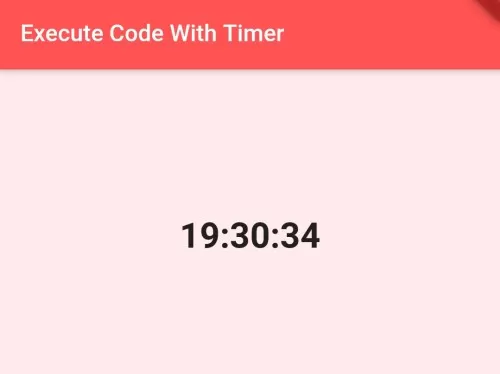
In this example, we are going to show you the way to execute or call code, functions on loop with time interval. For example, you want to call some function every 5 seconds, then see the example below to learn how to set Time Interval in Flutter App.
To Use Timer, import the following dart library:
import 'dart:async';Run Code on Every 5 Seconds:
Timer mytimer = Timer.periodic(Duration(seconds: 5), (timer) {
  //code to run on every 5 seconds
});
Run Code on Every 2 minutes 5 seconds:
Timer mytimer = Timer.periodic(Duration(minutes:2, seconds: 5), (timer) {
  //code to run on every 2 minutes 5 seconds
});
Run Code on Every 2 Hours and 30 Minutes:
Timer mytimer = Timer.periodic(Duration(hours:2, minutes: 30), (timer) {
  //cde to run on every 2 hours and 30 minutes
});
To Cancel or Terminate Timer:
Timer mytimer = Timer.periodic(Duration(seconds: 5), (timer) {
  //code to run on every 5 seconds
});

mytimer.cancel(); //to end timer
You can add more attributes to Duration() widget such as day, hours, minutes, seconds, microseconds, milliseconds.
See the example below to show current Time:
import 'dart:async';
import 'package:flutter/material.dart';
void main() {
  runApp(MyApp());
}

class MyApp extends StatefulWidget{
  @override
  _MyAppState createState() => _MyAppState();
}

class _MyAppState extends State<MyApp> {
  String time = "";

   @override
  void initState() {
     Timer mytimer = Timer.periodic(Duration(seconds: 1), (timer) {
        DateTime timenow = DateTime.now();  //get current date and time
        time = timenow.hour.toString() + ":" + timenow.minute.toString() + ":" + timenow.second.toString();
        setState(() {

        });
        //mytimer.cancel() //to terminate this timer
     });
    super.initState();
  }
  @override
  Widget build(BuildContext context) {
    return MaterialApp(
        title: "Test App",
        home: Scaffold(
        appBar: AppBar(
            title:Text("Execute Code With Timer"),
            backgroundColor: Colors.redAccent,
        ),
        body: Container(
          height: 260,
          color: Colors.red.shade50,
          child: Center(
            child: Text(time, style: TextStyle(fontSize: 30, fontWeight: FontWeight.bold),),
            //show time on UI
          )
        )
      )
    );
  }
}
Output Screenshot:

In this way, you can set time intervals using Timer in Flutter to execute code on loop. For one-off delayed executions rather than recurring loops, see how to handle running code after a delay or apply for loops on widgets.
Updated Flutter Example
Periodic Timer Lifecycle & State Management
Key Implementation Details & Modern Differences:
- Guaranteed Lifecycle Cancellation: In Flutter, failing to cancel a
Timer.periodicinsidedispose()results in serious memory leaks and unhandled runtime exceptions. Always cancel active timers before widget disposal. - Mounted State Guarding: Guards periodic callback execution with
if (mounted) setState(...)to prevent triggering state updates after widget destruction. - Controllable Start/Stop Controls: Encapsulates timer initialization into explicit start and stop routines with intuitive action buttons.
import 'dart:async';
import 'package:flutter/material.dart';

void main() {
  runApp(const MaterialApp(home: ModernPeriodicTimerDemo()));
}

class ModernPeriodicTimerDemo extends StatefulWidget {
  const ModernPeriodicTimerDemo({super.key});

  @override
  State<ModernPeriodicTimerDemo> createState() =>
      _ModernPeriodicTimerDemoState();
}

class _ModernPeriodicTimerDemoState extends State<ModernPeriodicTimerDemo> {
  Timer? _timer;
  int _secondsElapsed = 0;
  bool _isRunning = false;

  void _startTimer() {
    _timer?.cancel();
    setState(() => _isRunning = true);
    _timer = Timer.periodic(const Duration(seconds: 1), (timer) {
      if (mounted) {
        setState(() => _secondsElapsed++);
      }
    });
  }

  void _stopTimer() {
    _timer?.cancel();
    if (mounted) {
      setState(() => _isRunning = false);
    }
  }

  @override
  void dispose() {
    // Crucial: Always cancel periodic timers in dispose to prevent leaks
    _timer?.cancel();
    super.dispose();
  }

  @override
  Widget build(BuildContext context) {
    return Scaffold(
      appBar: AppBar(
        title: const Text('Periodic Timer Lifecycle'),
      ),
      body: Center(
        child: Column(
          mainAxisAlignment: MainAxisAlignment.center,
          children: [
            Text(
              'Seconds: $_secondsElapsed',
              key: const Key('timer-text'),
              style: Theme.of(context).textTheme.headlineMedium,
            ),
            const SizedBox(height: 24),
            Row(
              mainAxisAlignment: MainAxisAlignment.center,
              children: [
                FilledButton.icon(
                  onPressed: _isRunning ? null : _startTimer,
                  icon: const Icon(Icons.play_arrow),
                  label: const Text('Start'),
                ),
                const SizedBox(width: 16),
                OutlinedButton.icon(
                  onPressed: _isRunning ? _stopTimer : null,
                  icon: const Icon(Icons.stop),
                  label: const Text('Stop'),
                ),
              ],
            ),
          ],
        ),
      ),
    );
  }
}
Document History & Archival Record
Original reference snapshot archived March 22, 2023. Updated working solution verified on modern Flutter & Dart SDKs.