
How to change shape, size and location of Floating Action Button in Flutter App
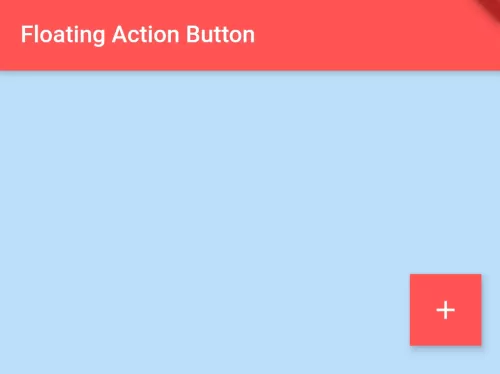
By default, the shape of the floating action button (FAB) in the flutter is circular and the location is bottom right floated. You can change the location and shape of the floating action button using properties in Scaffold() widget class and FloatingActionButton() widget class.
To change the shape of the Floating action button:
You can use the shape property of FloatingActionButton() widget class. Implement BeveledRectangleBorder() on this property.
FloatingActionButton(
     shape: BeveledRectangleBorder(
          borderRadius: BorderRadius.zero
     ),
)
The output will be a square floating action button, increase the border-radius value to make a circular type shape.
To change the size of the Floating action button:
To change the size of the floating action button, wrap it with SizedBox() widget and pass custom height and width.
SizedBox(
    height:100,
    width:100,
    child:FloatingActionButton(
       child: Icon(Icons.add), //child widget inside this button
       onPressed: (){
            print("Button is pressed.");
             //task to execute when this button is pressed
        },
     ),
),
To change the location of the Floating action button:
To change the location of the floating action button on the screen, use floatingActionButtonLocation property of Scaffold() widget.
Scaffold(
    floatingActionButtonLocation: FloatingActionButtonLocation.centerFloat
)
Flutter App Example:
import 'package:flutter/material.dart';

void main() {
   runApp(MyApp());
}

class MyApp extends StatelessWidget{
  @override
  Widget build(BuildContext context) {
    return MaterialApp(
         home: HomePage(),
    );
  }
}

class HomePage extends StatelessWidget{
  @override
  Widget build(BuildContext context) {
    return Scaffold(
        floatingActionButtonLocation: FloatingActionButtonLocation.centerFloat,
        floatingActionButton: SizedBox(
          height:100,
          width:100,
          child:FloatingActionButton(
              child: Icon(Icons.add), //child widget inside this button
              shape: BeveledRectangleBorder(
                borderRadius: BorderRadius.zero
              ),
              onPressed: (){
                print("Button is pressed.");
                //task to execute when this button is pressed
              },
            ),
        ),
        backgroundColor: Colors.blue[100], //background color of scaffold
        appBar: AppBar(
            title:Text("Floating Action Button"), //title of app
            backgroundColor: Colors.redAccent, //background color of app bar
        ),

        body: Center(
          child:Text("Floating Action Button")
        )
     );
  }
}
Output:
| Square shape Floating Action Button | Centered Floating Action Button | Large size Floating Action Button |
 |  |  |
In this way, you can change the shape, size, and location of FloatingActionButton() widget. To customize your floating button layout further, explore adding multiple FloatingActionButtons or implement notched floating action buttons in bottom navigation.
Updated Flutter Example
Material 3 FloatingActionButton Sizes & Shapes
Key Implementation Details & Modern Differences:
- Material 3 Size Scale: Utilizes official Small, Regular, Large, and Extended factory constructors instead of custom scaled transforms.
- Configurable Shape Geometries: Demonstrates default rounded rectangle (16dp) alongside custom
CircleBorder()geometries. - Dynamic Scaffold Docking: Integrates responsive
FloatingActionButtonLocationswitching betweenendFloatandcenterDocked.
import 'package:flutter/material.dart';

void main() {
  runApp(const MaterialApp(home: ModernFloatingActionButtonDemo()));
}

class ModernFloatingActionButtonDemo extends StatefulWidget {
  const ModernFloatingActionButtonDemo({super.key});

  @override
  State<ModernFloatingActionButtonDemo> createState() =>
      _ModernFloatingActionButtonDemoState();
}

class _ModernFloatingActionButtonDemoState
    extends State<ModernFloatingActionButtonDemo> {
  int _counter = 0;
  bool _useCircularShape = false;
  FloatingActionButtonLocation _location =
      FloatingActionButtonLocation.endFloat;

  @override
  Widget build(BuildContext context) {
    final theme = Theme.of(context);
    final customShape = _useCircularShape
        ? const CircleBorder()
        : RoundedRectangleBorder(borderRadius: BorderRadius.circular(16));

    return Scaffold(
      appBar: AppBar(title: const Text('Material 3 FloatingActionButton')),
      body: Padding(
        padding: const EdgeInsets.all(20.0),
        child: Column(
          crossAxisAlignment: CrossAxisAlignment.start,
          children: [
            Text(
              'Action Counter: $_counter',
              key: const Key('fab-counter-text'),
              style: theme.textTheme.titleMedium,
            ),
            const SizedBox(height: 16),
            Wrap(
              spacing: 8,
              runSpacing: 8,
              children: [
                FilterChip(
                  label: const Text('Circular Shape'),
                  selected: _useCircularShape,
                  onSelected: (val) => setState(() => _useCircularShape = val),
                ),
                ChoiceChip(
                  label: const Text('End Float'),
                  selected: _location == FloatingActionButtonLocation.endFloat,
                  onSelected: (_) => setState(
                    () => _location = FloatingActionButtonLocation.endFloat,
                  ),
                ),
                ChoiceChip(
                  label: const Text('Center Docked'),
                  selected:
                      _location == FloatingActionButtonLocation.centerDocked,
                  onSelected: (_) => setState(
                    () => _location = FloatingActionButtonLocation.centerDocked,
                  ),
                ),
              ],
            ),
            const SizedBox(height: 24),
            Text(
              'Material 3 FAB Size Variants:',
              style: theme.textTheme.titleSmall,
            ),
            const SizedBox(height: 12),
            Wrap(
              spacing: 16,
              crossAxisAlignment: WrapCrossAlignment.center,
              children: [
                // Small FAB
                FloatingActionButton.small(
                  heroTag: 'fab-small',
                  shape: customShape,
                  onPressed: () => setState(() => _counter++),
                  child: const Icon(Icons.add),
                ),
                // Standard Regular FAB
                FloatingActionButton(
                  heroTag: 'fab-regular',
                  shape: customShape,
                  onPressed: () => setState(() => _counter++),
                  child: const Icon(Icons.edit),
                ),
                // Large FAB
                FloatingActionButton.large(
                  heroTag: 'fab-large',
                  shape: customShape,
                  onPressed: () => setState(() => _counter++),
                  child: const Icon(Icons.palette),
                ),
              ],
            ),
            const Divider(height: 36),
            Text(
              'Modern Architecture: Material 3 introduces 4 standard FAB variants: '
              'Small (40x40), Regular (56x56), Large (96x96), and Extended. '
              'The default M3 shape is a rounded rectangle with 16dp radius, easily '
              'overridden with shape: CircleBorder().',
              style: theme.textTheme.bodySmall?.copyWith(
                color: Colors.grey[700],
              ),
            ),
          ],
        ),
      ),
      floatingActionButton: FloatingActionButton.extended(
        heroTag: 'fab-extended',
        shape: customShape,
        onPressed: () => setState(() => _counter++),
        icon: const Icon(Icons.send),
        label: const Text('Dispatch'),
      ),
      floatingActionButtonLocation: _location,
    );
  }
}
Document History & Archival Record
Original reference snapshot archived April 1, 2023. Updated working solution verified on modern Flutter & Dart SDKs.