
How to Trigger Button Click Programmatically in Flutter
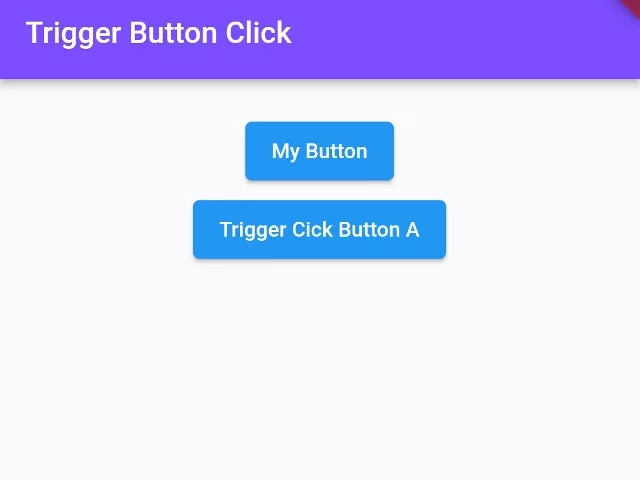
In this example, we are going to show you how to simulate or trigger gestures like click, button down, button up, or button press in Flutter. You will learn to make an auto-click button with this example. See the codes below:
Step 1: Set the Key for the Button:
final mybuttonkey = GlobalKey();ElevatedButton(
key:mybuttonkey,
onPressed: (){
print("Button is pressed");
},
child: Text("My Button"),
)First, you need to set the global key to the button or any other widget where you want to simulate the button press gesture.
Step 2: Get the X and Y positions of the Button:
RenderBox renderbox = mybuttonkey.currentContext!.findRenderObject() as RenderBox;
Offset position = renderbox.localToGlobal(Offset.zero);
double x = position.dx;
double y = position.dy;
print(x);
print(y);This is the way to get the x and y position of buttons or any widget in Flutter.
Step 3: Trigger Button Down and Button Up (Press):
import 'package:flutter/gestures.dart';GestureBinding.instance.handlePointerEvent(PointerDownEvent(
position: Offset(x, y),
)); //trigger button up,
await Future.delayed(Duration(milliseconds: 500));
//add delay between up and down button
GestureBinding.instance.handlePointerEvent(PointerUpEvent(
position: Offset(x, y),
)); //trigger button downUsing the GestureBinding(), you can trigger any mouse click event at a given x and y coordinate offset.
Full App Example:
import 'package:flutter/gestures.dart';
import 'package:flutter/material.dart';
void main(){
runApp(MyApp());
}
class MyApp extends StatelessWidget{
@override
Widget build(BuildContext context) {
return MaterialApp(
home: Home(),
);
}
}
class Home extends StatefulWidget{
@override
_HomeState createState() => _HomeState();
}
class _HomeState extends State<Home> {
@override
Widget build(BuildContext context) {
final mybuttonkey = GlobalKey();
return Scaffold(
appBar: AppBar(
title: Text("Trigger Button Click"),
backgroundColor: Colors.deepPurpleAccent,
),
body: Container(
padding: EdgeInsets.all(20),
alignment: Alignment.topCenter,
child:Column(
children: [
//button A
ElevatedButton(
  key:mybuttonkey,
  onPressed: (){
    print("Button is pressed");
  },
  child: Text("My Button"),
),
//Button B
ElevatedButton(
onPressed: () async {
RenderBox renderbox = mybuttonkey.currentContext!.findRenderObject() as RenderBox;
Offset position = renderbox.localToGlobal(Offset.zero);
double x = position.dx;
double y = position.dy;

print(x);
print(y);
GestureBinding.instance.handlePointerEvent(PointerDownEvent(
  position: Offset(x, y),
)); //trigger button up,

await Future.delayed(Duration(milliseconds: 500));
//add delay between up and down button

GestureBinding.instance.handlePointerEvent(PointerUpEvent(
  position: Offset(x, y),
)); //trigger button down
},
child: Text("Trigger Cick Button A")
)
]
)
),
);
}
}Output Screenshot:

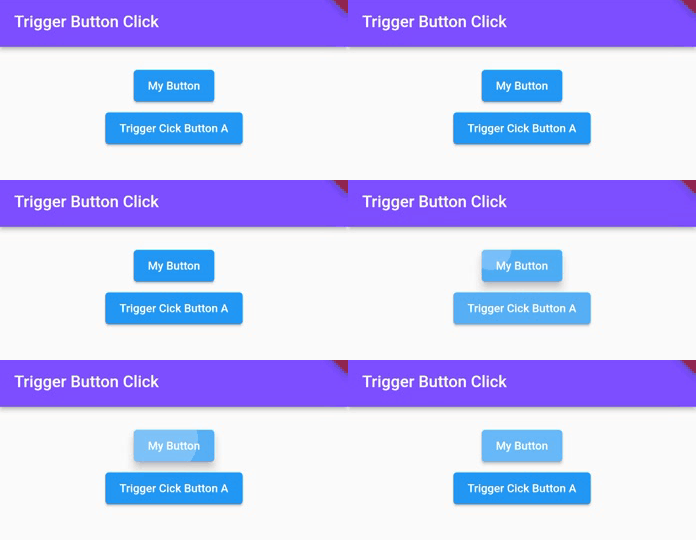
Here, when the user presses the down button, the upper button will be triggered button press, the GIF output is shown above in this article.
In this way, you can simulate or trigger button press or click in Flutter. To provide immediate visual feedback upon button activation, explore displaying toast notifications and controlling dialog lifecycles programmatically.
Updated Flutter Example
Programmatic Action Triggers & State Decoupling
Key Implementation Details & Modern Differences:
- Decoupled Controller Architecture: Employs
ChangeNotifierandListenableBuilderinstead of fragile widget GlobalKey hacking. - Multi-Source Execution: Demonstrates action triggering from both in-widget buttons and top-level AppBar actions.
- Clean State Telemetry: Updates execution count and timestamp logging reliably across the UI.
import 'package:flutter/material.dart';

void main() {
  runApp(const MaterialApp(home: ModernProgrammaticActionDemo()));
}

/// Controller decoupling action triggers from the UI widget tree.
class ActionTriggerController extends ChangeNotifier {
  int _actionCount = 0;
  String _lastActionStatus = 'Idle';

  int get actionCount => _actionCount;
  String get lastActionStatus => _lastActionStatus;

  /// Programmatic trigger method callable from outside the widget tree.
  void triggerAction(String source) {
    _actionCount++;
    _lastActionStatus = 'Triggered via $source at ${DateTime.now().second}s';
    notifyListeners();
  }
}

class ModernProgrammaticActionDemo extends StatefulWidget {
  const ModernProgrammaticActionDemo({super.key});

  @override
  State<ModernProgrammaticActionDemo> createState() =>
      _ModernProgrammaticActionDemoState();
}

class _ModernProgrammaticActionDemoState
    extends State<ModernProgrammaticActionDemo> {
  final ActionTriggerController _controller = ActionTriggerController();

  @override
  void dispose() {
    _controller.dispose();
    super.dispose();
  }

  @override
  Widget build(BuildContext context) {
    final theme = Theme.of(context);

    return Scaffold(
      appBar: AppBar(
        title: const Text('Programmatic Action Triggers'),
        actions: [
          IconButton(
            icon: const Icon(Icons.flash_on),
            tooltip: 'Trigger from AppBar',
            onPressed: () => _controller.triggerAction('AppBar Action'),
          ),
        ],
      ),
      body: ListenableBuilder(
        listenable: _controller,
        builder: (context, _) {
          return Center(
            child: SingleChildScrollView(
              padding: const EdgeInsets.all(20.0),
              child: Column(
                mainAxisAlignment: MainAxisAlignment.center,
                children: [
                  Card(
                    elevation: 0,
                    color: theme.colorScheme.surfaceContainerHighest,
                    shape: RoundedRectangleBorder(
                      borderRadius: BorderRadius.circular(16),
                    ),
                    child: Padding(
                      padding: const EdgeInsets.all(24.0),
                      child: Column(
                        children: [
                          Text(
                            'Action Executions:',
                            style: theme.textTheme.labelMedium,
                          ),
                          const SizedBox(height: 8),
                          Text(
                            '${_controller.actionCount}',
                            key: const Key('action-count-text'),
                            style: theme.textTheme.headlineMedium?.copyWith(
                              fontWeight: FontWeight.bold,
                            ),
                          ),
                          const SizedBox(height: 8),
                          Text(
                            _controller.lastActionStatus,
                            key: const Key('action-status-text'),
                            style: theme.textTheme.bodyMedium,
                          ),
                        ],
                      ),
                    ),
                  ),
                  const SizedBox(height: 24),
                  FilledButton.icon(
                    onPressed: () => _controller.triggerAction('Main Button'),
                    icon: const Icon(Icons.touch_app),
                    label: const Text('Trigger Programmatic Action'),
                  ),
                ],
              ),
            ),
          );
        },
      ),
    );
  }
}
Document History & Archival Record
Original reference snapshot archived January 27, 2023. Updated working solution verified on modern Flutter & Dart SDKs.