
How to Style DropdownButton in Flutter
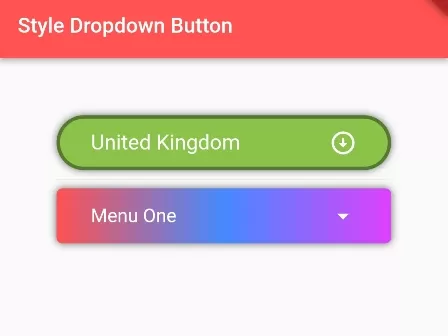
In this example, we are going to show how to style DropdownButton, such as applying background color, border width, border color, border-radius, box-shadow, Dropdown Menu color, font color, font size, icons, etc. See the example:
Read this also: How to add Dropdown Button Widget in Flutter App
How to apply Background Color, Border, Shadow in DropdownButton:
DecoratedBox(
  decoration: BoxDecoration(
     color:Colors.lightGreen, //background color of dropdown button
     border: Border.all(color: Colors.black38, width:3), //border of dropdown button
     borderRadius: BorderRadius.circular(50), //border raiuds of dropdown button
     boxShadow: <BoxShadow>[ //apply shadow on Dropdown button
            BoxShadow(
                color: Color.fromRGBO(0, 0, 0, 0.57), //shadow for button
                blurRadius: 5) //blur radius of shadow
          ]
  ),

  child:Padding(
    padding: EdgeInsets.only(left:30, right:30),
     child:DropdownButton(
      value: "United Kingdom",
      items: [ //add items in the dropdown
        DropdownMenuItem(
          child: Text("United Kingdom"),
          value: "United Kingdom",
        ),
        DropdownMenuItem(
          child: Text("Canada"),
          value: "Canada"
        ),
        DropdownMenuItem(
          child: Text("Russia"),
          value: "Russia",
        )

      ],
      onChanged: (value){ //get value when changed
          print("You have selected $value");
      },
      icon: Padding( //Icon at tail, arrow bottom is default icon
        padding: EdgeInsets.only(left:20),
        child:Icon(Icons.arrow_circle_down_sharp)
      ),
      iconEnabledColor: Colors.white, //Icon color
      style: TextStyle(  //te
         color: Colors.white, //Font color
         fontSize: 20 //font size on dropdown button
      ),

      dropdownColor: Colors.redAccent, //dropdown background color
      underline: Container(), //remove underline
      isExpanded: true, //make true to make width 100%
     )
  )
)
The output of DropdownButton:
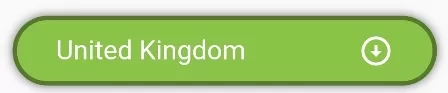
You can use DecoratedBox() to apply decoration on DropdownButton() widget. DecoratedBox provides all necessary parameters to customize the style of any kind of widget.
If you get any errors then have a look: How to Solve DropdownButton Errors in Flutter
How to set Gradient Background color on DropdownButton:
DecoratedBox(
    decoration: BoxDecoration(
          gradient: LinearGradient(
            colors: [
              Colors.redAccent,
              Colors.blueAccent,
              Colors.purpleAccent
              //add more colors
            ]),
          borderRadius: BorderRadius.circular(5),
          boxShadow: <BoxShadow>[
            BoxShadow(
                color: Color.fromRGBO(0, 0, 0, 0.57), //shadow for button
                blurRadius: 5) //blur radius of shadow
          ]
    ),
    child: Padding(
      padding: EdgeInsets.only(left:30, right:30),
      child:DropdownButton(
          value: "menuone",
          items: [
              DropdownMenuItem(
                child: Text("Menu One"),
                value: "menuone",
              )
          ],
          onChanged: (value){

          },
          isExpanded: true, //make true to take width of parent widget
          underline: Container(), //empty line
          style: TextStyle(fontSize: 18, color: Colors.white),
          dropdownColor: Colors.green,
          iconEnabledColor: Colors.white, //Icon color
        )
    )
)
The output of DropdownButton with Gradient Background:

Related Post: How to set Gradient Background on ElevetedButton in Flutter
Full Flutter/Dart App Code Example:
import 'package:flutter/material.dart';

void main() {
  runApp(MyApp());
}

class MyApp extends StatelessWidget{
  @override
  Widget build(BuildContext context) {
     return MaterialApp(
         home: Home()
      );
  }
}

class Home extends  StatefulWidget {
  @override
  State<Home> createState() => _HomeState();
}

class _HomeState extends State<Home> {

  String selectval = "United Kingdom";

  @override
  Widget build(BuildContext context) {

    return Scaffold(
         appBar: AppBar(
            title: Text("Style Dropdown Button"),
            backgroundColor: Colors.redAccent
         ),
          body: Container(
            alignment: Alignment.center,
            padding: EdgeInsets.all(50),
             child: Column(
                children: [

                    DecoratedBox(
                      decoration: BoxDecoration(
                        color:Colors.lightGreen, //background color of dropdown button
                        border: Border.all(color: Colors.black38, width:3), //border of dropdown button
                        borderRadius: BorderRadius.circular(50), //border raiuds of dropdown button
                        boxShadow: <BoxShadow>[ //apply shadow on Dropdown button
                                BoxShadow(
                                    color: Color.fromRGBO(0, 0, 0, 0.57), //shadow for button
                                    blurRadius: 5) //blur radius of shadow
                              ]
                      ),

                      child:Padding(
                        padding: EdgeInsets.only(left:30, right:30),
                        child:DropdownButton(
                          value: "United Kingdom",
                          items: [ //add items in the dropdown
                            DropdownMenuItem(
                              child: Text("United Kingdom"),
                              value: "United Kingdom",
                            ),
                            DropdownMenuItem(
                              child: Text("Canada"),
                              value: "Canada"
                            ),
                            DropdownMenuItem(
                              child: Text("Russia"),
                              value: "Russia",
                            )

                          ],
                          onChanged: (value){ //get value when changed
                              print("You have selected $value");
                          },
                          icon: Padding( //Icon at tail, arrow bottom is default icon
                            padding: EdgeInsets.only(left:20),
                            child:Icon(Icons.arrow_circle_down_sharp)
                          ),
                          iconEnabledColor: Colors.white, //Icon color
                          style: TextStyle(  //te
                            color: Colors.white, //Font color
                            fontSize: 20 //font size on dropdown button
                          ),

                          dropdownColor: Colors.redAccent, //dropdown background color
                          underline: Container(), //remove underline
                          isExpanded: true, //make true to make width 100%
                        )
                      )
                    ),

                    Divider(),

                    DecoratedBox(
                        decoration: BoxDecoration(
                              gradient: LinearGradient(
                                colors: [
                                  Colors.redAccent,
                                  Colors.blueAccent,
                                  Colors.purpleAccent
                                  //add more colors
                                ]),
                              borderRadius: BorderRadius.circular(5),
                              boxShadow: <BoxShadow>[
                                BoxShadow(
                                    color: Color.fromRGBO(0, 0, 0, 0.57), //shadow for button
                                    blurRadius: 5) //blur radius of shadow
                              ]
                        ),
                        child: Padding(
                          padding: EdgeInsets.only(left:30, right:30),
                          child:DropdownButton(
                              value: "menuone",
                              items: [
                                  DropdownMenuItem(
                                    child: Text("Menu One"),
                                    value: "menuone",
                                  )
                              ],
                              onChanged: (value){

                              },
                              isExpanded: true, //make true to take width of parent widget
                              underline: Container(), //empty line
                              style: TextStyle(fontSize: 18, color: Colors.white),
                              dropdownColor: Colors.green,
                              iconEnabledColor: Colors.white, //Icon color
                            )
                        )
                    )

                ]
              )
          )
    );
  }
}
Output Screenshot:

In this way, you can style DropdownButton and apply a background color, border color, border radius, border width, gradient background, box-shadow, font size, change icon, and many more in the Flutter app. For fundamental dropdown setup, see how to add DropdownButton widgets and review how to solve common DropdownButton errors.
Updated Flutter Example
Modern Material 3 DropdownMenu Architecture
Key Implementation Details & Modern Differences:
- Material 3 DropdownMenu Migration: Replaces deprecated legacy
DropdownButtonwith modernDropdownMenufeaturing text editing controllers and search filtering. - Type-Safe Menu Entries: Utilizes
DropdownMenuEntrywith leading icons, enabled states, and custom labels. - InputDecoration & Menu Styling: Employs
menuStyleand modern border styling for uniform design system compliance.
import 'package:flutter/material.dart';

void main() {
  runApp(const MaterialApp(home: ModernDropdownMenuDemo()));
}

enum PriorityLevel { low, medium, high, critical }

class ModernDropdownMenuDemo extends StatefulWidget {
  const ModernDropdownMenuDemo({super.key});

  @override
  State<ModernDropdownMenuDemo> createState() => _ModernDropdownMenuDemoState();
}

class _ModernDropdownMenuDemoState extends State<ModernDropdownMenuDemo> {
  PriorityLevel _selectedPriority = PriorityLevel.medium;

  @override
  Widget build(BuildContext context) {
    final theme = Theme.of(context);

    return Scaffold(
      appBar: AppBar(title: const Text('Material 3 DropdownMenu')),
      body: Padding(
        padding: const EdgeInsets.all(20.0),
        child: Column(
          crossAxisAlignment: CrossAxisAlignment.start,
          children: [
            Text(
              'Selected Priority: ${_selectedPriority.name.toUpperCase()}',
              key: const Key('selected-priority-text'),
              style: theme.textTheme.titleMedium,
            ),
            const SizedBox(height: 20),
            DropdownMenu<PriorityLevel>(
              initialSelection: _selectedPriority,
              label: const Text('Priority Level'),
              leadingIcon: const Icon(Icons.flag_outlined),
              onSelected: (PriorityLevel? value) {
                if (value != null) {
                  setState(() => _selectedPriority = value);
                }
              },
              dropdownMenuEntries: const [
                DropdownMenuEntry(
                  value: PriorityLevel.low,
                  label: 'Low Priority',
                  leadingIcon: Icon(Icons.low_priority, color: Colors.blue),
                ),
                DropdownMenuEntry(
                  value: PriorityLevel.medium,
                  label: 'Medium Priority',
                  leadingIcon: Icon(Icons.flag, color: Colors.amber),
                ),
                DropdownMenuEntry(
                  value: PriorityLevel.high,
                  label: 'High Priority',
                  leadingIcon: Icon(Icons.priority_high, color: Colors.orange),
                ),
                DropdownMenuEntry(
                  value: PriorityLevel.critical,
                  label: 'Critical Priority',
                  leadingIcon: Icon(Icons.warning_amber, color: Colors.red),
                ),
              ],
            ),
            const Divider(height: 36),
            Text(
              'Modern Architecture: DropdownMenu<T> is the official Material 3 replacement '
              'for DropdownButton. It integrates with text editing controllers, provides search '
              'autocomplete capabilities, and conforms to Material 3 design tokens.',
              style: theme.textTheme.bodySmall?.copyWith(
                color: Colors.grey[700],
              ),
            ),
          ],
        ),
      ),
    );
  }
}
Document History & Archival Record
Original reference snapshot archived June 3, 2023. Updated working solution verified on modern Flutter & Dart SDKs.