
How to add Dropdown Button Widget in Flutter App
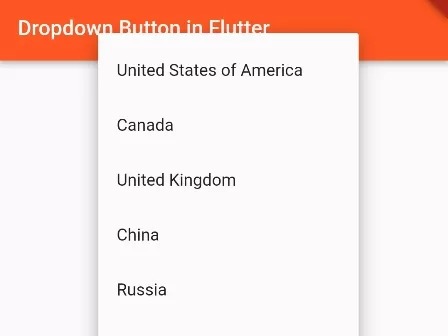
In this example, we are going to show you the easiest way to implement the dropdown button and add Menu Items from array List. We also show you the way to select value, set the initial value. See the example.
Read This Also:\u00a0How to add Dropdown Button Widget in Flutter App
How to Add DropdownButton and implement Items inside:
List<String> listitems = ["United States of America", "Canada", "United Kingdom", "China", "Russia", "Austria"];
String selectval = "United States of America";

DropdownButton(
    value: selectval,
    onChanged: (value){
        setState(() {
          selectval = value.toString();
        });
    },
    items: listitems.map((itemone){
        return DropdownMenuItem(
          value: itemone,
          child: Text(itemone)
        );
    }).toList(),
)
Here, selectval will be the selected item, you can use this variable while submitting your form.
If you encounter any error, have a look at\u00a0How to Solve DropdownButton Errors in Flutter
Full Code Example:
import 'package:flutter/material.dart';

void main() {
  runApp(
    MaterialApp( home: MyApp(),)
  );
}

class MyApp extends StatefulWidget{
  @override
  State<MyApp> createState() => _MyAppState();
}

class _MyAppState extends State<MyApp> {

  List<String> listitems = ["United States of America", "Canada", "United Kingdom", "China", "Russia", "Austria"];
  String selectval = "United States of America";

  @override
  Widget build(BuildContext context) {
    return Scaffold(
          appBar: AppBar(
              title:Text("Dropdown Button in Flutter"),
              backgroundColor: Colors.deepOrange,
          ),
          body: Container(
              margin: EdgeInsets.only(top:80),
              alignment: Alignment.topCenter,
              child: DropdownButton(
                  value: selectval,
                  onChanged: (value){
                     setState(() {
                        selectval = value.toString();
                     });
                  },
                  items: listitems.map((itemone){
                      return DropdownMenuItem(
                        value: itemone,
                        child: Text(itemone)
                      );
                  }).toList(),
              ),
          )
      );
  }
}
Output Screenshot:

In this way, you can add DropdownButton widget and populate Items from List Array in Flutter. To implement other selection controls, explore our guide on radio buttons in Flutter and checkbox widgets in Flutter.
Updated Flutter Example
Modern Material 3 DropdownMenu Architecture
Key Implementation Details & Modern Differences:
- Material 3 DropdownMenu Widget: Replaces obsolete, unconstrained
DropdownButtonwith the official Material 3DropdownMenuwidget featuring built-in search filtering and text editing. - Type-Safe DropdownMenuEntry: Uses typed
DropdownMenuEntrywith icons, labels, and disabled states instead of manualDropdownMenuItemboilerplate. - Integrated Controller Sync: Connects selection directly to a
TextEditingControllerfor seamless form integration.
import 'package:flutter/material.dart';

void main() {
  runApp(const MaterialApp(home: ModernDropdownDemo()));
}

enum FrameworkCategory { flutter, dart, crossPlatform, web }

class ModernDropdownDemo extends StatefulWidget {
  const ModernDropdownDemo({super.key});

  @override
  State<ModernDropdownDemo> createState() => _ModernDropdownDemoState();
}

class _ModernDropdownDemoState extends State<ModernDropdownDemo> {
  FrameworkCategory? _selectedCategory = FrameworkCategory.flutter;
  final TextEditingController _categoryController = TextEditingController();

  @override
  void dispose() {
    _categoryController.dispose();
    super.dispose();
  }

  @override
  Widget build(BuildContext context) {
    return Scaffold(
      appBar: AppBar(title: const Text('Material 3 DropdownMenu Architecture')),
      body: Padding(
        padding: const EdgeInsets.all(20.0),
        child: Column(
          crossAxisAlignment: CrossAxisAlignment.start,
          children: [
            DropdownMenu<FrameworkCategory>(
              initialSelection: _selectedCategory,
              controller: _categoryController,
              label: const Text('Select Category'),
              dropdownMenuEntries: const [
                DropdownMenuEntry(
                  value: FrameworkCategory.flutter,
                  label: 'Flutter Framework',
                  leadingIcon: Icon(Icons.layers),
                ),
                DropdownMenuEntry(
                  value: FrameworkCategory.dart,
                  label: 'Dart Language',
                  leadingIcon: Icon(Icons.code),
                ),
                DropdownMenuEntry(
                  value: FrameworkCategory.crossPlatform,
                  label: 'Cross-Platform Engine',
                  leadingIcon: Icon(Icons.devices),
                ),
                DropdownMenuEntry(
                  value: FrameworkCategory.web,
                  label: 'Web Deployment',
                  leadingIcon: Icon(Icons.public),
                ),
              ],
              onSelected: (FrameworkCategory? category) {
                setState(() => _selectedCategory = category);
              },
            ),
            const SizedBox(height: 24),
            Text(
              'Selected: ${_selectedCategory?.name.toUpperCase() ?? 'None'}',
              key: const Key('selection-indicator'),
              style: Theme.of(context).textTheme.titleSmall,
            ),
          ],
        ),
      ),
    );
  }
}
Document History & Archival Record
Original reference snapshot archived February 3, 2023. Updated working solution verified on modern Flutter & Dart SDKs.