
How to set Gradient Background on ElevetedButton in Flutter
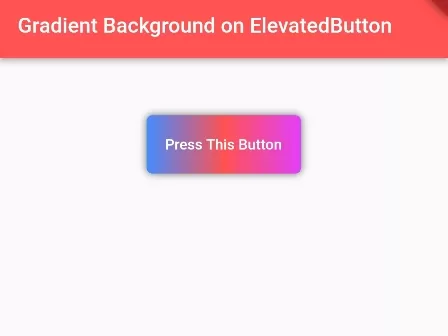
In this example, we are going to show you how to set gradient background on ElevatedButton in Flutter. We will use DecoratedBox() widget to set gradient background. See the example:
Read this also:\u00a0How to Style DropdownButton in Flutter
How to Set Gradient Background on ElevatedButton:
DecoratedBox(
    decoration: BoxDecoration(
          gradient: LinearGradient(
            colors: [
              Colors.blueAccent,
              Colors.redAccent,
              Colors.purpleAccent
              //add more colors
            ]),
          borderRadius: BorderRadius.circular(5),
          boxShadow: <BoxShadow>[
            BoxShadow(
                color: Color.fromRGBO(0, 0, 0, 0.57), //shadow for button
                blurRadius: 5) //blur radius of shadow
          ]
      ),
    child:ElevatedButton(
      style: ElevatedButton.styleFrom(
          primary: Colors.transparent,
          onSurface: Colors.transparent,
          shadowColor: Colors.transparent,
          //make color or elevated button transparent
      ),

      onPressed: (){
          print("You pressed Elevated Button");
      },
      child: Padding(
        padding:EdgeInsets.only(
          top: 18,
          bottom: 18,
        ),
        child:Text("Press This Button"),
      )
    )
)
DecoratedBox() widget is used to decorate any kind of widget in Flutter. When we wrap ElevatedButton() with DecoratedBox(), the decoration style will apply below Elevated Button. Therefore, transparent colors need to apply on ElevatedButton().
Full Dart/Flutter Code Example:
import 'package:flutter/material.dart';

void main() {
  runApp(MyApp());
}

class MyApp extends StatelessWidget{
  @override
  Widget build(BuildContext context) {
     return MaterialApp(
         home: Home()
      );
  }
}

class Home extends  StatefulWidget {
  @override
  State<Home> createState() => _HomeState();
}

class _HomeState extends State<Home> {
  @override
  Widget build(BuildContext context) {
    return Scaffold(
         appBar: AppBar(
            title: Text("Gradient Background on ElevatedButton"),
            backgroundColor: Colors.redAccent
         ),
          body: Container(
            alignment: Alignment.center,
            padding: EdgeInsets.all(50),
             child: Column(
                children: [

                    DecoratedBox(
                        decoration: BoxDecoration(
                             gradient: LinearGradient(
                               colors: [
                                  Colors.blueAccent,
                                  Colors.redAccent,
                                  Colors.purpleAccent
                                  //add more colors
                                ]),
                              borderRadius: BorderRadius.circular(5),
                              boxShadow: <BoxShadow>[
                                BoxShadow(
                                    color: Color.fromRGBO(0, 0, 0, 0.57), //shadow for button
                                    blurRadius: 5) //blur radius of shadow
                              ]
                         ),
                        child:ElevatedButton(
                          style: ElevatedButton.styleFrom(
                             primary: Colors.transparent,
                             onSurface: Colors.transparent,
                             shadowColor: Colors.transparent,
                             //make color or elevated button transparent
                          ),

                          onPressed: (){
                              print("You pressed Elevated Button");
                          },
                          child: Padding(
                            padding:EdgeInsets.only(
                              top: 18,
                              bottom: 18,
                            ),
                            child:Text("Press This Button"),
                          )
                        )
                    )

                ]
              )
          )
    );
  }
}
Output Screenshot:

In this way, you can apply a gradient color background on ElevatedButton() using DecoratedBox(). Apply this code in your project, or create your own gradient button widget using this code so that you can reuse it without long styling codes in Flutter. To apply similar gradients to background cards and containers, explore linear gradient backgrounds on containers and adding icons to elevated buttons.
Updated Flutter Example
Gradient Button Architecture with Ink & InkWell
Key Implementation Details & Modern Differences:
- Ink Splash Preservation: Uses
InkandInkWellnested inside Material to keep splash ripples visible on top of rich gradient decorations. - Material 3 Rounded Elevation: Incorporates proper border radiuses, clipping, and elevation shadow handling.
- Flexible State Handling: Demonstrates disabled gradient rendering with subdued tonal opacity when onPressed is null.
import 'package:flutter/material.dart';

void main() {
  runApp(const MaterialApp(home: ModernGradientButtonDemo()));
}

/// Custom Gradient Button ensuring ripple splashes render cleanly.
class GradientButton extends StatelessWidget {
  final Widget child;
  final Gradient gradient;
  final VoidCallback? onPressed;
  final double borderRadius;

  const GradientButton({
    super.key,
    required this.child,
    required this.gradient,
    required this.onPressed,
    this.borderRadius = 12.0,
  });

  @override
  Widget build(BuildContext context) {
    final isEnabled = onPressed != null;

    return Material(
      color: Colors.transparent,
      elevation: isEnabled ? 3.0 : 0.0,
      shadowColor: Colors.black38,
      borderRadius: BorderRadius.circular(borderRadius),
      child: Ink(
        decoration: BoxDecoration(
          gradient: isEnabled
              ? gradient
              : const LinearGradient(colors: [Colors.grey, Colors.blueGrey]),
          borderRadius: BorderRadius.circular(borderRadius),
        ),
        child: InkWell(
          borderRadius: BorderRadius.circular(borderRadius),
          onTap: onPressed,
          child: Padding(
            padding: const EdgeInsets.symmetric(
              horizontal: 24.0,
              vertical: 14.0,
            ),
            child: Center(
              widthFactor: 1.0,
              heightFactor: 1.0,
              child: DefaultTextStyle(
                style: const TextStyle(
                  color: Colors.white,
                  fontWeight: FontWeight.bold,
                  fontSize: 15,
                ),
                child: child,
              ),
            ),
          ),
        ),
      ),
    );
  }
}

class ModernGradientButtonDemo extends StatefulWidget {
  const ModernGradientButtonDemo({super.key});

  @override
  State<ModernGradientButtonDemo> createState() =>
      _ModernGradientButtonDemoState();
}

class _ModernGradientButtonDemoState extends State<ModernGradientButtonDemo> {
  int _clickCount = 0;

  @override
  Widget build(BuildContext context) {
    return Scaffold(
      appBar: AppBar(title: const Text('Gradient Button Architecture')),
      body: Center(
        child: Column(
          mainAxisAlignment: MainAxisAlignment.center,
          children: [
            Text(
              'Gradient Button Taps: $_clickCount',
              key: const Key('gradient-tap-count'),
              style: Theme.of(context).textTheme.titleLarge,
            ),
            const SizedBox(height: 24),
            GradientButton(
              gradient: const LinearGradient(
                colors: [Color(0xFF6366F1), Color(0xFFA855F7)],
                begin: Alignment.topLeft,
                end: Alignment.bottomRight,
              ),
              onPressed: () => setState(() => _clickCount++),
              child: const Row(
                mainAxisSize: MainAxisSize.min,
                children: [
                  Icon(Icons.bolt, color: Colors.white, size: 20),
                  SizedBox(width: 8),
                  Text('Trigger Action'),
                ],
              ),
            ),
          ],
        ),
      ),
    );
  }
}
Document History & Archival Record
Original reference snapshot archived March 7, 2023. Updated working solution verified on modern Flutter & Dart SDKs.