
How to Get X and Y Coordinates of Widget in Flutter
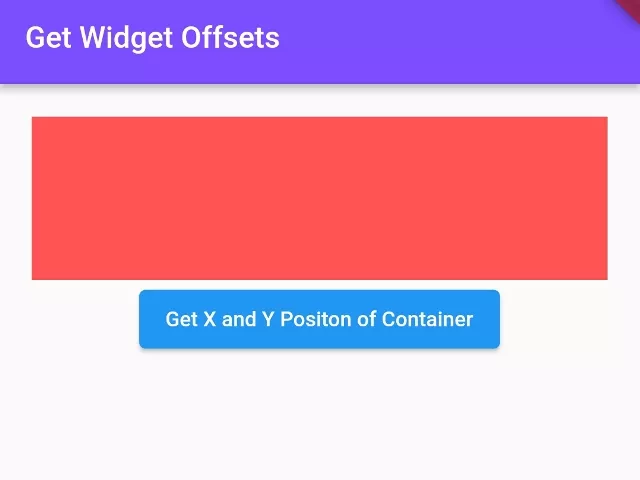
In this example, we are going to show you how to get the x and y position or coordinates of all corners i.e, top left, top right, bottom left, and bottom right of any widget in Flutter. X and Y offset of the widget is a crucial factor of a widget.
First, Set the Key to the Widget:
final mywidgetkey = GlobalKey();Container(
key:mywidgetkey
)First, you need to add the key to each widget of which you want to get x and y positions during runtime.
Now, Get the X and Y Position Offsets:
RenderBox renderbox = mywidgetkey.currentContext!.findRenderObject() as RenderBox;
Offset position = renderbox.localToGlobal(Offset.zero);
double x = position.dx;
double y = position.dy;

//Top left Corner
print(x); //20.0
print(y); //112.36363636363637
Here, x and y is the coordinates of the top left corner of the widget. You can also get coordinates of other corners like below:
double width = renderbox.size.width;
double height = renderbox.size.height;

print(width); //352.72727272727275
print(height); //100.0

//top right corner
print(x + width); //372.72727272727275
print(y); //112.36363636363637

//bottom left corner
print(x); //20.0
print(y + height); //212.36363636363637

  //bottom right corner
print(x + width); //372.72727272727275
print(y + height); //212.36363636363637
Here, we got the top right, bottom left, and bottom right corner coordinates.
Full App Example:
import 'package:flutter/material.dart';

void main(){
  runApp(MyApp());
}

class MyApp extends StatelessWidget{
  @override
  Widget build(BuildContext context) {
    return MaterialApp(
      home: Home(),
    );
  }
}

class Home extends StatefulWidget{
  @override
  _HomeState createState() => _HomeState();
}

class _HomeState extends State<Home> {
  @override
  Widget build(BuildContext context) {

    final mywidgetkey = GlobalKey();

    return  Scaffold(
      appBar: AppBar(
          title: Text("Get Widget Offsets"),
          backgroundColor: Colors.deepPurpleAccent,
      ),
      body: Container(
        padding: EdgeInsets.all(20),
        alignment: Alignment.topCenter,
        child:Column(
          children: [
              //button A
              Container(
                key:mywidgetkey,
                height: 100,
                color: Colors.redAccent,
              ),

               //Button B
               ElevatedButton(
                onPressed: () async {

                    RenderBox renderbox = mywidgetkey.currentContext!.findRenderObject() as RenderBox;
                    Offset position = renderbox.localToGlobal(Offset.zero);
                    double x = position.dx;
                    double y = position.dy;

                    //Top left Corner
                    print(x); //20.0
                    print(y); //112.36363636363637

                    double width = renderbox.size.width;
                    double height = renderbox.size.height;

                    print(width); //352.72727272727275
                    print(height); //100.0

                    //top right corner
                    print(x + width); //372.72727272727275
                    print(y); //112.36363636363637

                    //bottom left corner
                    print(x); //20.0
                    print(y + height); //212.36363636363637

                     //bottom right corner
                    print(x + width); //372.72727272727275
                    print(y + height); //212.36363636363637

                },
                child: Text("Get X and Y Positon of Container")
              )
          ]
        )
      ),
    );
  }
}
Output Screenshot:

In this way, you can get the x and y offset or position of any widget in Flutter. Once you know coordinate offsets, learn how to position widgets in Stack layouts or fix widgets at the top or bottom.
Updated Flutter Example
Widget Global Coordinates via RenderBox.localToGlobal
Key Implementation Details & Modern Differences:
- Post-Frame Global Coordinates: Uses
WidgetsBinding.instance.addPostFrameCallbackto guarantee coordinates are measured only after the initial layout pass completes. - Null-Safe RenderBox Casting: Safely accesses
currentContext?.findRenderObject() as RenderBox?avoiding unexpected runtime exceptions. - Accurate Screen Coordinate Mapping: Computes both global screen positions (
localToGlobal(Offset.zero)) and widget dimensions (renderBox.size).
import 'package:flutter/material.dart';

void main() {
  runApp(const MaterialApp(home: ModernWidgetCoordinatesDemo()));
}

class ModernWidgetCoordinatesDemo extends StatefulWidget {
  const ModernWidgetCoordinatesDemo({super.key});

  @override
  State<ModernWidgetCoordinatesDemo> createState() =>
      _ModernWidgetCoordinatesDemoState();
}

class _ModernWidgetCoordinatesDemoState
    extends State<ModernWidgetCoordinatesDemo> {
  final GlobalKey _targetKey = GlobalKey();
  Offset _coordinates = Offset.zero;
  Size _widgetSize = Size.zero;

  @override
  void initState() {
    super.initState();
    WidgetsBinding.instance.addPostFrameCallback((_) => _measureWidget());
  }

  void _measureWidget() {
    final context = _targetKey.currentContext;
    if (context == null) return;

    final renderBox = context.findRenderObject() as RenderBox?;
    if (renderBox != null && renderBox.hasSize) {
      final position = renderBox.localToGlobal(Offset.zero);
      setState(() {
        _coordinates = position;
        _widgetSize = renderBox.size;
      });
    }
  }

  @override
  Widget build(BuildContext context) {
    final theme = Theme.of(context);

    return Scaffold(
      appBar: AppBar(title: const Text('Widget Coordinates Architecture')),
      body: Padding(
        padding: const EdgeInsets.all(24.0),
        child: Column(
          crossAxisAlignment: CrossAxisAlignment.start,
          children: [
            Card.outlined(
              child: Padding(
                padding: const EdgeInsets.all(16.0),
                child: Column(
                  crossAxisAlignment: CrossAxisAlignment.start,
                  children: [
                    Text(
                      'Global Screen Coordinates:',
                      style: theme.textTheme.titleMedium,
                    ),
                    const SizedBox(height: 8),
                    Text(
                      'X: ${_coordinates.dx.toStringAsFixed(1)} | Y: ${_coordinates.dy.toStringAsFixed(1)}',
                      key: const Key('coordinates-text'),
                      style: const TextStyle(fontWeight: FontWeight.bold),
                    ),
                    Text(
                      'Size: ${_widgetSize.width.toStringAsFixed(1)} x ${_widgetSize.height.toStringAsFixed(1)}',
                      key: const Key('size-text'),
                      style: const TextStyle(fontWeight: FontWeight.bold),
                    ),
                  ],
                ),
              ),
            ),
            const SizedBox(height: 36),
            Center(
              child: Container(
                key: _targetKey,
                width: 180,
                height: 80,
                alignment: Alignment.center,
                decoration: BoxDecoration(
                  color: theme.colorScheme.primaryContainer,
                  borderRadius: BorderRadius.circular(12),
                  border: Border.all(color: theme.colorScheme.primary),
                ),
                child: const Text(
                  'Measured Target Box',
                  style: TextStyle(fontWeight: FontWeight.bold),
                ),
              ),
            ),
            const SizedBox(height: 24),
            Center(
              child: FilledButton.tonal(
                onPressed: _measureWidget,
                child: const Text('Re-measure Coordinates'),
              ),
            ),
            const Divider(height: 36),
            Text(
              'Modern Architecture: In Flutter, finding a widget position requires '
              'a GlobalKey and finding its RenderBox via currentContext?.findRenderObject(). '
              'Always wait until after the initial layout pass via addPostFrameCallback.',
              style: theme.textTheme.bodySmall?.copyWith(
                color: Colors.grey[700],
              ),
            ),
          ],
        ),
      ),
    );
  }
}
Document History & Archival Record
Original reference snapshot archived January 27, 2023. Updated working solution verified on modern Flutter & Dart SDKs.