
How to Show/Hide Password on TextField Input in Flutter App
Verified Solution
Tested on Flutter 3.47.7 • Dart 3.13.5
Jump to Updated Flutter Example ↓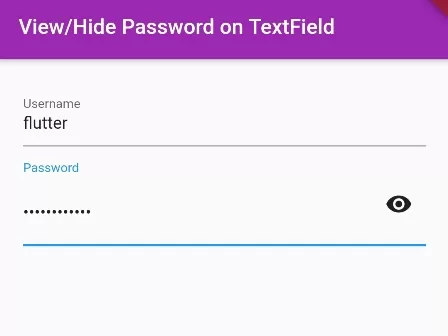
In this examle, we are going to show you how to add show or hide button at the end of TextFiled input in Flutter App, whenever user toggles the button, the asterisk ‘*’ will be shown or hided. See the example below:
How to Enable Password Input on TextField:
TextField(
  obscureText: true,
)
Show/Hide Password on TextField: Full Example
import 'package:flutter/material.dart';
void main() {
  runApp(
    MaterialApp(
      home: MyApp(),
    )
  );
}

class MyApp extends StatefulWidget{
  @override
  _MyAppState createState() => _MyAppState();
}

class _MyAppState extends State<MyApp> {

  bool passenable = true; //boolean value to track password view enable disable.

  @override
  Widget build(BuildContext context) {
    return Scaffold(
          appBar: AppBar(
              title:Text("View/Hide Password on TextField"),
              backgroundColor: Colors.purple,
          ),
          body: Container(
                  height: 200,
                  alignment: Alignment.center,
                  padding: EdgeInsets.all(20),
                  child: Column(
                     children: [

                       TextField(
                          decoration: InputDecoration(
                              hintText: "Enter Username Here",
                              labelText: "Username"
                          ),
                       ),

                       TextField(
                          obscureText: passenable, //if passenable == true, show **, else show password character
                          decoration: InputDecoration(
                              hintText: "Enter Password Here",
                              labelText: "Password",
                              suffix: IconButton(onPressed: (){ //add Icon button at end of TextField
                                      setState(() { //refresh UI
                                          if(passenable){ //if passenable == true, make it false
                                             passenable = false;
                                          }else{
                                             passenable = true; //if passenable == false, make it true
                                          }
                                      });
                              }, icon: Icon(passenable == true?Icons.remove_red_eye:Icons.password))
                              //eye icon if passenable = true, else, Icon is ***__
                          ),

                       ),

                     ],
                  )
          )
      );
  }
}
Output Screenshot:
| Password Input with “Show Password” Icon button at End. | Disable Astrisk ‘***’ on TextField on Click on View Password Button |
 |  |
In this way, you can Show/Hide password on TextField Input in Flutter App. To configure obscureText securely, explore our guide on password input fields in Flutter and setting icons on TextFields.
Updated Flutter Example
Updated Flutter Example
Material 3 Password Visibility Toggle & Autofill Integration
Key Implementation Details & Modern Differences:
- Reactive Obscure Toggle: Uses Material 3
TextFormFieldwith reactiveobscureText: _obscurePasswordtoggled via an interactive suffixIconButton. - Platform Autofill Integration: Includes
autofillHints: const [AutofillHints.password]to ensure native password managers (iOS Keychain, Android Autofill, browser managers) detect and secure user credentials. - Controller Resource Disposal: Explicitly cleans up
TextEditingControllerinstances insidedispose()to prevent native memory leaks.
Updated Flutter Example Code
import 'package:flutter/material.dart';

void main() {
  runApp(const MaterialApp(home: ModernPasswordFieldDemo()));
}

class ModernPasswordFieldDemo extends StatefulWidget {
  const ModernPasswordFieldDemo({super.key});

  @override
  State<ModernPasswordFieldDemo> createState() =>
      _ModernPasswordFieldDemoState();
}

class _ModernPasswordFieldDemoState extends State<ModernPasswordFieldDemo> {
  final _passwordController = TextEditingController();
  bool _obscurePassword = true;

  @override
  void dispose() {
    _passwordController.dispose();
    super.dispose();
  }

  void _togglePasswordVisibility() {
    setState(() {
      _obscurePassword = !_obscurePassword;
    });
  }

  @override
  Widget build(BuildContext context) {
    return Scaffold(
      appBar: AppBar(title: const Text('Modern Password Field Demo')),
      body: Padding(
        padding: const EdgeInsets.all(24.0),
        child: Column(
          crossAxisAlignment: CrossAxisAlignment.stretch,
          children: [
            TextFormField(
              controller: _passwordController,
              obscureText: _obscurePassword,
              autocorrect: false,
              enableSuggestions: false,
              autofillHints: const [AutofillHints.password],
              textInputAction: TextInputAction.done,
              decoration: InputDecoration(
                labelText: 'Account Password',
                prefixIcon: const Icon(Icons.lock_outline),
                suffixIcon: IconButton(
                  icon: Icon(
                    _obscurePassword ? Icons.visibility_off : Icons.visibility,
                  ),
                  tooltip:
                      _obscurePassword ? 'Show password' : 'Hide password',
                  onPressed: _togglePasswordVisibility,
                ),
                border: const OutlineInputBorder(),
              ),
            ),
            const SizedBox(height: 24),
            FilledButton(
              onPressed: () {
                final len = _passwordController.text.length;
                ScaffoldMessenger.of(context).showSnackBar(
                  SnackBar(
                    content: Text('Password submitted: $len characters'),
                  ),
                );
              },
              child: const Text('Sign In Securely'),
            ),
          ],
        ),
      ),
    );
  }
}
Document History & Archival Record
Original reference snapshot archived February 3, 2023. Updated working solution verified on modern Flutter & Dart SDKs.