
How to Add Multiple Floating Action Buttons in One Screen in Flutter App
Verified Solution
Tested on Flutter 3.47.7 (Stable) • Dart 3.13.5
Jump to Updated Flutter Example ↓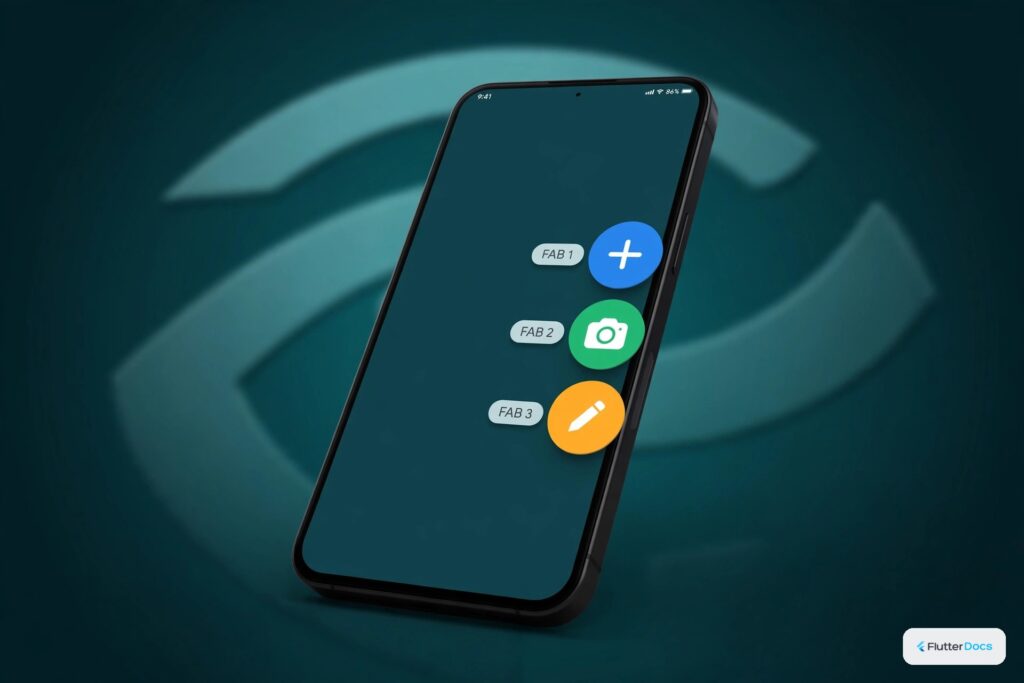
The attribute’floatingActionButton‘ of Scaffold() widget allows you to add only one floating action button, but if you do a simple trick, you can achieve a single screen with multiple floating action buttons like below:
Add Multiple Floating Action Buttons in Scaffold() widget:
Scaffold(
  floatingActionButton: Wrap( //will break to another line on overflow
    direction: Axis.horizontal, //use vertical to show  on vertical axis
    children: <Widget>[
          Container(
            margin:EdgeInsets.all(10),
            child: FloatingActionButton(
              onPressed: (){
                  //action code for button 1
              },
              child: Icon(Icons.add),
            )
          ), //button first

          Container(
            margin:EdgeInsets.all(10),
            child: FloatingActionButton(
              onPressed: (){
                  //action code for button 2
              },
              backgroundColor: Colors.deepPurpleAccent,
              child: Icon(Icons.add),
            )
          ), // button second

          Container(
            margin:EdgeInsets.all(10),
            child: FloatingActionButton(
              onPressed: (){
                  //action code for button 3
              },
              backgroundColor: Colors.deepOrangeAccent,
              child: Icon(Icons.add),
            )
          ), // button third

          // Add more buttons here
    ],),
)
Full Dart Code:
Use Wrap() widget to add multiple floating action buttons. View the code below for more insight.
import 'package:flutter/material.dart';
void main() {
  runApp(MyApp());
}

class MyApp extends StatelessWidget{

  @override
  Widget build(BuildContext context) {
    return MaterialApp(
        title: "Test App",
        home: Scaffold(
        appBar: AppBar(title:Text("Multiple Floating Action Buttons")),
        floatingActionButton: Wrap( //will break to another line on overflow
                  direction: Axis.horizontal, //use vertical to show  on vertical axis
                  children: <Widget>[
                        Container(
                          margin:EdgeInsets.all(10),
                          child: FloatingActionButton(
                            onPressed: (){
                                //action code for button 1
                            },
                            child: Icon(Icons.add),
                          )
                        ), //button first

                        Container(
                          margin:EdgeInsets.all(10),
                          child: FloatingActionButton(
                            onPressed: (){
                                //action code for button 2
                            },
                            backgroundColor: Colors.deepPurpleAccent,
                            child: Icon(Icons.add),
                          )
                        ), // button second

                        Container(
                          margin:EdgeInsets.all(10),
                          child: FloatingActionButton(
                            onPressed: (){
                                //action code for button 3
                            },
                            backgroundColor: Colors.deepOrangeAccent,
                            child: Icon(Icons.add),
                          )
                        ), // button third

                        // Add more buttons here
                ],
            ),
        body: Container(
             child: Center(
               child: Text("Multiple Floating Buttons"),
             ),
        ),
      )
    );
  }
}
Output Screenshot:

You can add any number of floating action buttons on one screen. Copy the code above and modify it according to your project. For navigation bar integrations, explore notched floating action buttons in bottom app bars and customizing FloatingActionButton shapes and locations.
Updated Flutter Example
Updated Flutter Example
Multi-FAB & Expandable Speed Dial Architecture
Key Implementation Details & Modern Differences:
- Hero Tag Collision Prevention: Solves Flutter's classic multiple FAB hero tag exception by assigning distinct tags or disabling tags on nested buttons.
- Material 3 Speed Dial Layout: Organizes secondary action buttons in a clean vertical column anchored to the bottom-end scaffold.
- Responsive Size Variants: Combines regular
FloatingActionButtonwithFloatingActionButton.smallfor clear visual hierarchy.
Updated Flutter Example Code
import 'package:flutter/material.dart';

void main() {
  runApp(const MaterialApp(home: ModernMultiFabDemo()));
}

/// Production architecture for multiple FloatingActionButtons with collision-free hero tags.
class ModernMultiFabDemo extends StatefulWidget {
  const ModernMultiFabDemo({super.key});

  @override
  State<ModernMultiFabDemo> createState() => _ModernMultiFabDemoState();
}

class _ModernMultiFabDemoState extends State<ModernMultiFabDemo> {
  bool _isExpanded = false;
  String _lastAction = 'None';

  @override
  Widget build(BuildContext context) {
    final theme = Theme.of(context);

    return Scaffold(
      appBar: AppBar(title: const Text('Multi-FAB Speed Dial Architecture')),
      body: Center(
        child: Padding(
          padding: const EdgeInsets.all(20.0),
          child: Column(
            mainAxisAlignment: MainAxisAlignment.center,
            children: [
              Text('Last Action Executed:', style: theme.textTheme.labelMedium),
              const SizedBox(height: 8),
              Text(
                _lastAction,
                key: const Key('last-action-text'),
                style: theme.textTheme.headlineMedium?.copyWith(
                  fontWeight: FontWeight.bold,
                  color: theme.colorScheme.primary,
                ),
              ),
            ],
          ),
        ),
      ),
      floatingActionButton: Column(
        mainAxisSize: MainAxisSize.min,
        crossAxisAlignment: CrossAxisAlignment.end,
        children: [
          if (_isExpanded) ...[
            FloatingActionButton.small(
              heroTag: 'fab-camera',
              tooltip: 'Camera',
              onPressed: () {
                setState(() => _lastAction = 'Camera Clicked');
              },
              child: const Icon(Icons.camera_alt),
            ),
            const SizedBox(height: 12),
            FloatingActionButton.small(
              heroTag: 'fab-share',
              tooltip: 'Share',
              onPressed: () {
                setState(() => _lastAction = 'Share Clicked');
              },
              child: const Icon(Icons.share),
            ),
            const SizedBox(height: 12),
          ],
          FloatingActionButton(
            heroTag: 'fab-main-expand',
            tooltip: _isExpanded ? 'Close Menu' : 'Open Menu',
            onPressed: () {
              setState(() => _isExpanded = !_isExpanded);
            },
            child: Icon(_isExpanded ? Icons.close : Icons.add),
          ),
        ],
      ),
    );
  }
}
Document History & Archival Record
Original reference snapshot archived March 22, 2023. Updated working solution verified on modern Flutter & Dart SDKs.