
How to Add WYSIWYG HTML Editor in Flutter
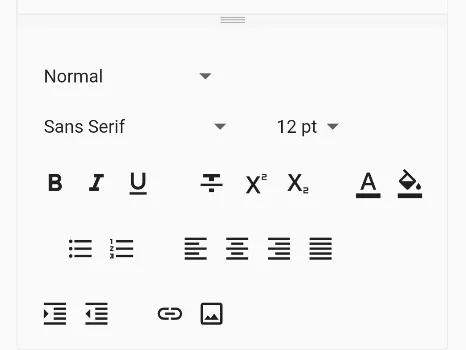
In this example, we are going to show you how to add WYSIWYG HTML Editor in Flutter. Furthermore, you will learn to set up different kinds of toolbar buttons and get the HTML text from the editor. See the example below for more details:
First, add html_editor_enhanced package to your project by adding the following lines in pubspec.yaml file:
dependencies:
  flutter:
    sdk: flutter
  html_editor_enhanced: ^2.5.0
Don’t forget to give internet permission on AndroidManifest.xml file.
<uses-permission android:name="android.permission.INTERNET"/>Now import, the package to your script:
import 'package:html_editor_enhanced/html_editor.dart';Declare Controller:
HtmlEditorController controller = HtmlEditorController();How to Add HTML Editor in Flutter:
HtmlEditor(
    controller: controller,
    htmlEditorOptions: HtmlEditorOptions(
      hint: "Type you Text here",
    ),
    otherOptions: OtherOptions(
      height: 400,
    ),
)
Add this code to your flutter script, the output will look like the below:
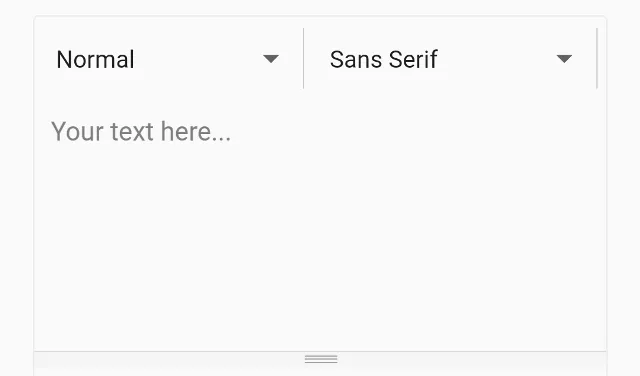
Now, you can extend the Toolbar buttons with the method below:
HtmlEditor(
    controller: controller, //required
    htmlEditorOptions: HtmlEditorOptions(
      hint: "Type you Text here",
    ),
    htmlToolbarOptions: HtmlToolbarOptions(
      toolbarType: ToolbarType.nativeGrid
    ),
    otherOptions: OtherOptions(
      height: 400,
    ),
)
The output of this code:
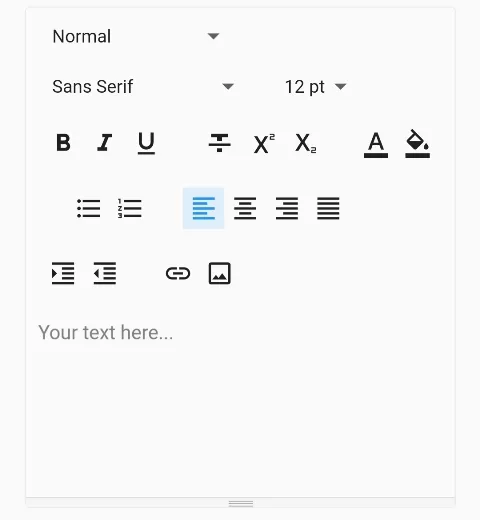
you can also put these toolbar icons below the editor:
HtmlEditor(
    controller: controller, //required
    htmlEditorOptions: HtmlEditorOptions(
      hint: "Type you Text here",
    ),
    htmlToolbarOptions: HtmlToolbarOptions(
      toolbarType: ToolbarType.nativeGrid,
      toolbarPosition: ToolbarPosition.belowEditor
    ),
    otherOptions: OtherOptions(
      height: 400,
    ),
)
The output of this code:
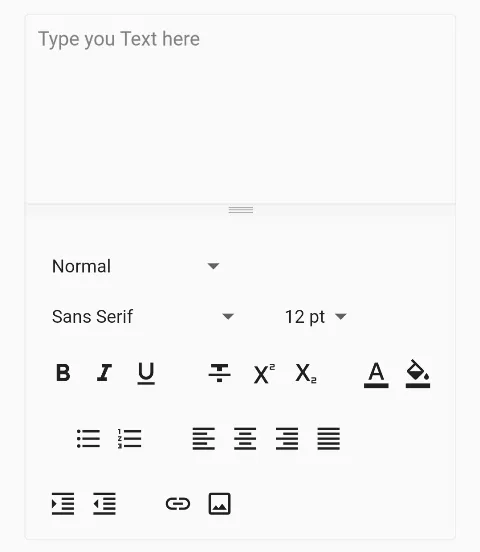
How to Show Specific Buttons only on HTML Editor:
HtmlEditor(
    controller: controller, //required
    htmlEditorOptions: HtmlEditorOptions(
      hint: "Type you Text here",
    ),
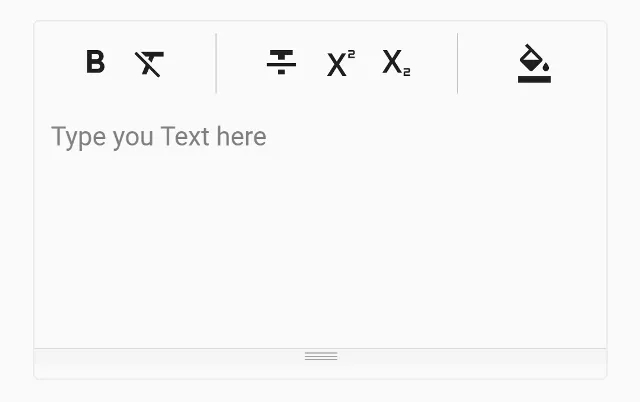
    htmlToolbarOptions: HtmlToolbarOptions(
      defaultToolbarButtons: [
          FontButtons(
              underline: false,
              italic: false,
              //you can do more with
              //bold, clearAll, strikethrough,
              //subscript, supscript

          ),

          ColorButtons(
              foregroundColor: false
              //highlightColor: true
          ),

          //ListButtons(),
          //FontSettingButtons(),
          //ParagraphButtons(),
          //InsertButtons()

      ]
    ),
    otherOptions: OtherOptions(
      height: 200,
    ),
),
The output of this code:
How to Get the HTML Text Value from the Editor to Submit:
String data = await controller.getText();Here, the controller is the controller of the HTML editor which we have declared and assigned at the top.
Full Code Example:
import 'package:flutter/material.dart';
import 'package:html_editor_enhanced/html_editor.dart';

void main(){
  runApp(MyApp());
}

class MyApp extends StatelessWidget{
  @override
  Widget build(BuildContext context) {
    return MaterialApp(
      home: Home(),
    );
  }
}

class Home extends StatefulWidget{
  @override
  _HomeState createState() => _HomeState();
}

class _HomeState extends State<Home> {

  HtmlEditorController controller = HtmlEditorController();


  @override
  Widget build(BuildContext context) {
    return  Scaffold(
          appBar: AppBar(
            title: Text("HTML Editor in Flutter"),
            backgroundColor: Colors.redAccent,
          ),
          body: Container(
            padding: EdgeInsets.only(top:20, left:20, right:20),
            child: Column(
              children: [

                  HtmlEditor(
                      controller: controller, //required
                      htmlEditorOptions: HtmlEditorOptions(
                        hint: "Type you Text here",
                      ),
                      htmlToolbarOptions: HtmlToolbarOptions(
                        toolbarType: ToolbarType.nativeGrid,
                      ),
                      otherOptions: OtherOptions(
                        height: 400,
                      ),
                  ),

                  ElevatedButton(
                    onPressed: () async {
                      String data = await controller.getText();
                    },
                    child: Text("Get HTML Text")
                  )

            ],)
          )
       );
  }
}
In this way, you can add HTML editor to Flutter. To render formatted HTML content directly in your app, see how to convert and render HTML as widgets or remove HTML tags from strings.
Recommended Implementation Approach
Modern Rich Document Delta & WYSIWYG Architecture
Key Implementation Details & Modern Differences:
- Delta-Based Document Structure: Models rich text operations through immutable delta segments rather than raw unsafe HTML string concatenation.
- Modular Formatting Toolbar: Implements active toggle states for Bold, Italic, and Heading styles with immediate preview updates.
- Sanitized HTML Serializer: Transforms delta segments cleanly into valid semantic HTML elements (
<strong>,<em>,<h3>).
import 'package:flutter/material.dart';

void main() {
  runApp(const MaterialApp(home: ModernRichDocumentEditorDemo()));
}

/// Rich text segment with styling attributes.
class RichSegment {
  final String text;
  final bool isBold;
  final bool isItalic;
  final bool isHeading;

  const RichSegment({
    required this.text,
    this.isBold = false,
    this.isItalic = false,
    this.isHeading = false,
  });

  String toHtml() {
    var out = text;
    if (isBold) out = '<strong>$out</strong>';
    if (isItalic) out = '<em>$out</em>';
    if (isHeading) out = '<h3>$out</h3>';
    return out;
  }
}

/// Structured document container.
class StructuredDocument {
  final List<RichSegment> segments;

  const StructuredDocument(this.segments);

  String toHtml() {
    return segments.map((s) => s.toHtml()).join(' ');
  }
}

class ModernRichDocumentEditorDemo extends StatefulWidget {
  const ModernRichDocumentEditorDemo({super.key});

  @override
  State<ModernRichDocumentEditorDemo> createState() =>
      _ModernRichDocumentEditorDemoState();
}

class _ModernRichDocumentEditorDemoState
    extends State<ModernRichDocumentEditorDemo> {
  bool _bold = false;
  bool _italic = false;
  bool _heading = false;
  final _textController = TextEditingController(
    text: 'Flutter modern WYSIWYG content.',
  );
  final List<RichSegment> _segments = [];

  void _addSegment() {
    if (_textController.text.trim().isEmpty) return;
    setState(() {
      _segments.add(
        RichSegment(
          text: _textController.text.trim(),
          isBold: _bold,
          isItalic: _italic,
          isHeading: _heading,
        ),
      );
      _textController.clear();
      _bold = false;
      _italic = false;
      _heading = false;
    });
  }

  @override
  void dispose() {
    _textController.dispose();
    super.dispose();
  }

  @override
  Widget build(BuildContext context) {
    final theme = Theme.of(context);
    final doc = StructuredDocument(_segments);

    return Scaffold(
      appBar: AppBar(title: const Text('Modern Rich Document Editor')),
      body: SingleChildScrollView(
        padding: const EdgeInsets.all(20.0),
        child: Column(
          crossAxisAlignment: CrossAxisAlignment.stretch,
          children: [
            Wrap(
              spacing: 8,
              children: [
                FilterChip(
                  label: const Text('Bold'),
                  selected: _bold,
                  onSelected: (val) => setState(() => _bold = val),
                ),
                FilterChip(
                  label: const Text('Italic'),
                  selected: _italic,
                  onSelected: (val) => setState(() => _italic = val),
                ),
                FilterChip(
                  label: const Text('Heading'),
                  selected: _heading,
                  onSelected: (val) => setState(() => _heading = val),
                ),
              ],
            ),
            const SizedBox(height: 12),
            TextField(
              controller: _textController,
              decoration: const InputDecoration(
                border: OutlineInputBorder(),
                hintText: 'Enter text segment...',
              ),
            ),
            const SizedBox(height: 12),
            FilledButton.icon(
              onPressed: _addSegment,
              icon: const Icon(Icons.add),
              label: const Text('Append Formatted Segment'),
            ),
            const SizedBox(height: 24),
            Text('Document Preview:', style: theme.textTheme.titleMedium),
            const SizedBox(height: 8),
            Card(
              elevation: 0,
              color: theme.colorScheme.surfaceContainerHighest,
              child: Padding(
                padding: const EdgeInsets.all(16.0),
                child: _segments.isEmpty
                    ? const Text(
                        'Document is currently empty.',
                        style: TextStyle(fontStyle: FontStyle.italic),
                      )
                    : Column(
                        crossAxisAlignment: CrossAxisAlignment.start,
                        children: _segments
                            .map(
                              (s) => Text(
                                s.text,
                                style: TextStyle(
                                  fontWeight: s.isBold
                                      ? FontWeight.bold
                                      : FontWeight.normal,
                                  fontStyle: s.isItalic
                                      ? FontStyle.italic
                                      : FontStyle.normal,
                                  fontSize: s.isHeading ? 20 : 14,
                                ),
                              ),
                            )
                            .toList(),
                      ),
              ),
            ),
            const SizedBox(height: 16),
            Text('Generated HTML Output:', style: theme.textTheme.titleSmall),
            const SizedBox(height: 6),
            SelectableText(
              doc.toHtml(),
              style: const TextStyle(
                fontFamily: 'monospace',
                color: Colors.blueGrey,
              ),
            ),
          ],
        ),
      ),
    );
  }
}
Document History & Archival Record
Original reference snapshot archived April 1, 2023. Updated working solution verified on modern Flutter & Dart SDKs.